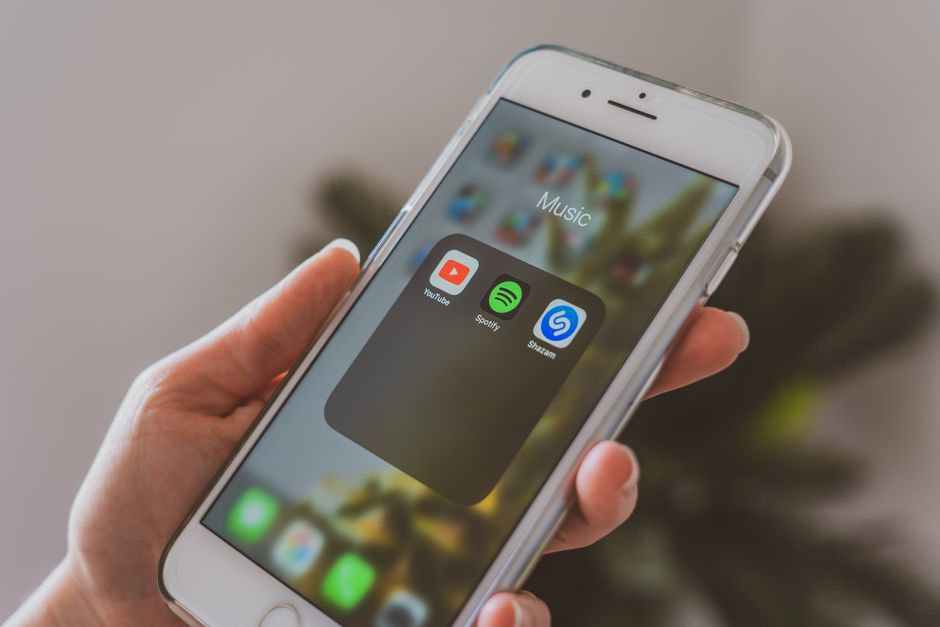
You can transfer your Spotify playlists to Apple Music completely free using AI chatbots like Claude and ChatGPT. Instead of paying $5-15 for third-party transfer apps, these free tools can convert your playlist data in minutes, though you’ll need to manually add the songs to Apple Music afterward.
I recently switched from Spotify to Apple Music and wanted to bring my carefully curated playlists along. Rather than paying for yet another subscription service, I experimented with AI chatbots to handle the conversion. The results surprised me with how accurate and fast the process was.
Why Skip the Paid Apps?
Playlist-transfer services like Soundiiz, TuneMyMusic, and FreeYourMusic charge between $5-15 for full access to their features. While they automate the entire process, you’re paying for convenience and handing over access to both your Spotify and Apple Music accounts.
Claude and ChatGPT offer compelling alternatives at zero cost. You maintain complete control over your data, no third-party app gets access to your streaming accounts, and there’s no subscription to remember to cancel. The only tradeoff is spending a bit more time manually adding songs to Apple Music.
For privacy-conscious users, this method keeps your music data between you and your streaming services. You’re not granting API access to another company or wondering how they’ll use your listening habits. A 50-song playlist takes about 10-15 minutes from start to finish, including manual song addition.
How to Export Your Spotify Playlists
Spotify doesn’t offer a direct export feature, but you can easily gather your playlist data for AI processing. Open each playlist you want to transfer in the Spotify desktop app or web player, click the three dots menu, select “Share,” then “Copy link to playlist,” and save these links in a text document.
For a more detailed approach, open your playlist and select all songs (Ctrl+A on Windows, Cmd+A on Mac). Copy the selection and paste it into a text editor. Spotify copies the data in a tab-separated format that includes track names, artists, albums, and duration.
You can also manually format the data by creating a simple list with each song as “Artist – Song Title” on separate lines. Save your playlist data as a text file or keep it in a document for easy copying, ensuring the formatting is consistent so the AI can parse it accurately.
Using Claude to Create Your Apple Music Playlists
Claude excels at processing structured data and understanding context, making it ideal for playlist transfers. Paste your Spotify playlist data into Claude and provide clear instructions: “I need to transfer this Spotify playlist to Apple Music. Please create a list of these songs with artist names and song titles that I can search for in Apple Music.”
Claude analyzes your playlist and generates a clean, organized list of tracks, typically formatting songs as numbered lists with “Artist – Song Title” format. If you have songs with special characters, remixes, or featuring artists, Claude handles these nuances well while maintaining important details like “(feat. Artist Name)” or “(Remix)” that help you find the exact version on Apple Music.
For edge cases where Spotify has exclusive versions or alternate names, ask Claude: “Are there any songs that might have different names on Apple Music?” You can also request specific formatting: “Format this as a CSV file” or “Create a table with columns for artist, song, and album.”
Using ChatGPT as a Backup Method
ChatGPT provides similar functionality with some advantages for specific situations. For longer playlists over 100 songs, ChatGPT handles batch processing efficiently. Paste your entire playlist and ask: “Convert this Spotify playlist to a format I can use to recreate it in Apple Music.”
ChatGPT offers more formatting flexibility if you need the data in specific structures like JSON format for technical applications, markdown tables for documentation, or simple numbered lists for quick reference. When Claude missed a song or suggested an unexpected match, running the same playlist through ChatGPT often revealed different results.
Both chatbots work well, so your choice depends on personal preference. Claude tends to provide cleaner initial output, while ChatGPT offers more customization options.
Adding Playlists to Apple Music Manually
This step requires patience but goes faster than expected with the right approach. Open Apple Music and create a new playlist with the same name as your Spotify original. Keep your AI-generated song list visible on half your screen with Apple Music on the other half.
Use the search bar efficiently by copying artist and song names directly from your list. Apple Music’s search is forgiving with minor spelling variations and usually surfaces the correct song in the top results. On Mac, press Cmd+Click to add songs directly from search results, or right-click on Windows and select “Add to Playlist.”
Work in batches of 10-20 songs to maintain accuracy, checking off each song as you add it. After adding all songs, play through your new playlist and spot-check a few tracks to verify they match your originals.
Troubleshooting Common Issues
You’ll inevitably hit snags during the transfer process. Songs may not be found in Apple Music due to exclusivity deals, regional restrictions, or delisted content. When a song doesn’t exist, ask your AI chatbot: “What’s an alternative for [Song Name] by [Artist] that’s available on Apple Music?”
Artist name variations cause matching issues (for example, “A$AP Rocky” versus “ASAP Rocky”). If search fails, try removing special characters or searching by song title alone. For songs with featuring artists, search variations can help: if “Song (feat. Artist)” doesn’t work, try just the main artist and song title.
Formatting errors occur when pasting large playlists. Break your playlist into smaller chunks of 50 songs and process them separately. Duplicate tracks sometimes appear if the AI interprets album versions and single versions differently. After adding all songs, sort your Apple Music playlist by title and scroll through to catch duplicates.
When This Method Works Best
The AI chatbot approach isn’t ideal for everyone but shines in specific situations. Small to medium-sized playlists under 200 songs work perfectly, taking 20-40 minutes total compared to the cost of paid services. Mainstream music transfers more reliably than obscure tracks, and niche genres or underground artists might have lower match rates.
This approach suits users comfortable with technology who don’t mind spot-checking results. The cost savings make sense when transferring multiple playlists (five playlists save you $25-75 compared to paid services). Privacy-conscious users appreciate keeping their data away from third-party services and not granting API access.
Pros and Cons Compared to Paid Apps
Advantages of the AI method:
- Completely free with no hidden costs or subscription traps
- No account creation or app installation required
- Your streaming accounts never accessed by third parties
- Works faster than expected for small playlists
- Flexible formatting options for your use case
- Educational process that helps you discover new Apple Music features
Disadvantages to consider:
- Requires manual song addition (no automatic import)
- AI occasionally misses tracks or suggests wrong versions
- Time-consuming for playlists over 200 songs
- No automated playlist syncing for future updates
- You need to handle troubleshooting yourself
- Album artwork and playlist descriptions don’t transfer
Transferring a 50-song playlist takes about 15 minutes with AI chatbots versus 2-3 minutes with automated services. For a 500-song playlist, you’re looking at 2-3 hours of manual work versus 10-15 minutes automated. Paid services typically match 95-98% of songs automatically, while the AI chatbot method matches 90-95% depending on your music taste.
Making Your Decision
The AI chatbot method for transferring Spotify to Apple Music works surprisingly well for the right situations. You’ll save money, maintain privacy, and gain hands-on experience with both platforms. Start with one small playlist to test the process, and if you find the workflow manageable and results accurate, scale up to your larger collections.
For massive libraries with dozens of playlists, consider a hybrid approach: use AI for your most important curated playlists and paid services for everything else. Your playlists are too valuable to leave behind when switching streaming services, so take control of your music library and bring your carefully curated collections along.
Frequently Asked Questions
Can Claude and ChatGPT find every song from my Spotify playlist on Apple Music?
AI chatbots typically match 90-95% of songs, but some tracks won’t exist on Apple Music due to exclusivity deals, regional restrictions, or delisted content. The chatbots can suggest alternatives for missing songs, and mainstream music transfers more reliably than obscure tracks.
How long does it actually take to transfer a 500-song playlist using AI?
A 500-song playlist takes approximately 2-3 hours with the AI chatbot method, including data export, AI processing, and manual song addition to Apple Music. This compares to 10-15 minutes with paid automated services, making the AI approach better suited for smaller playlists.
What’s the difference between using Claude vs. ChatGPT for this task?
Claude typically provides cleaner initial output and handles special characters well, while ChatGPT offers more formatting flexibility and works better for batch processing longer playlists. Both produce similar results, so the choice comes down to personal preference and which interface you find more comfortable.
Will Apple Music recognize imported playlists the same way as native ones?
Yes, playlists you manually create in Apple Music function identically to any other playlist. They sync across your devices, can be shared with friends, and work with all Apple Music features like offline downloads and playlist radio.
Is this method safe, and does it violate Spotify or Apple Music terms of service?
This method is completely safe and doesn’t violate any terms of service. You’re simply copying publicly visible playlist data and manually recreating it in another service, similar to writing down song names on paper. No API access or account credentials are shared with third parties.
What do I do if a song doesn’t exist on Apple Music?
Ask your AI chatbot to suggest alternatives by providing the song and artist name. Options include finding cover versions, remastered editions, live recordings, or similar songs by the same artist. Some songs remain exclusive to specific platforms and won’t have exact matches available.