If you’ve ever envied Samsung users and their incredible phone customization options, I have fantastic news. Google has finally given Pixel owners access to deep, system-level personalization tools that match what Samsung’s Good Lock has offered for years. The best part? Everything is completely free and built right into your phone.
I’ve spent the past few weeks exploring these features on my Pixel 8 Pro, and I’m genuinely impressed by how much control Google now gives users over their device’s appearance and functionality. You don’t need to root your phone, install sketchy third-party apps, or pay for premium features. It’s all there, waiting for you to discover.
What Makes Samsung’s Good Lock So Special?
Before we discuss what Google has done for Pixel users, let’s talk about why Samsung’s Good Lock became such a beloved feature among Android enthusiasts.
Good Lock is Samsung’s official customization framework that unlocks system-level modifications typically reserved for custom ROMs or root access. It’s not just about changing wallpapers or icon packs. Good Lock lets you redesign core interface elements like the lock screen clock style, notification panel layout, quick settings arrangement, and even app transition animations.
The framework includes multiple modules with names like QuickStar, LockStar, and ClockFace. Each module focuses on a specific part of the interface. Want a horizontal app switcher instead of the standard vertical layout? There’s a module for that. Prefer your notification shade to show more information at a glance? Another module handles it.
What made Good Lock revolutionary was that it gave average users access to customization depth previously requiring technical knowledge. Samsung essentially took features that enthusiasts would root their phones to access and packaged them in a user-friendly, official app.
The problem? Good Lock only works on Samsung devices. If you owned a Pixel, OnePlus, or any other Android phone, you were out of luck. That exclusivity made many people consider Samsung phones specifically for the customization options.
Google’s Solution: Native Pixel Customization Tools
Google took a different approach than Samsung. Instead of creating a separate app ecosystem, they integrated advanced Pixel customization features free of charge directly into the system settings. This happened gradually across Android 12, 13, and 14, with each version adding more personalization options.
The integration started becoming truly comprehensive with the Pixel 6 series and Android 12’s Material You design language. Google didn’t just add a few new settings. They fundamentally rethought how users interact with personalization options.
Unlike third-party customization apps that often require accessibility permissions or struggle with system updates, Google’s native tools are deeply integrated into the operating system. This means better performance, improved stability, and guaranteed compatibility with future updates.
How to Access Your Pixel’s Advanced Customization Features
Finding these customization options is straightforward once you know where to look. Google has organized them logically, but they’re spread across a few different settings menus.
For lock screen customization:
For notification and quick settings customization:
For system-wide theming:
The interface is intuitive, with live previews showing exactly how your changes will look before you commit to them. You can experiment freely without worrying about breaking anything.
Top Customization Features Available Right Now
Let me walk you through the most impressive customization options that make Pixel phones competitive with Samsung’s Good Lock ecosystem.
Lock Screen Personalization
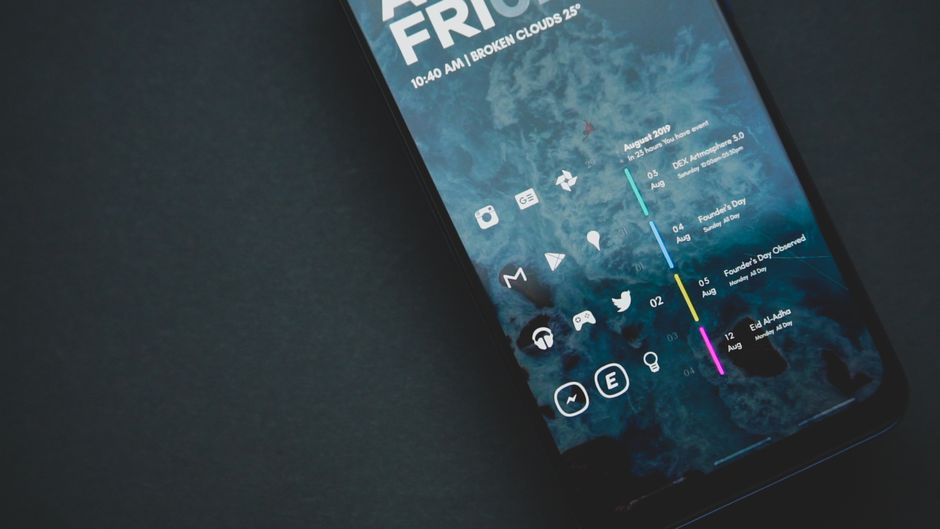
Your lock screen now offers multiple clock styles, from minimal single-line displays to bold statement pieces. You can position the clock at the top or center of the screen, adjust its size, and even change typography to match your aesthetic preferences.
The lock screen shortcuts are particularly useful. By default, you get camera and Google Home controls, but you can swap these for any app or action. I’ve set mine to open my password manager and smart home controls for quick access without unlocking my phone.
Widget support on the lock screen brings glanceable information front and center. Add weather forecasts, calendar appointments, fitness ring progress, or smart home status displays. Each widget integrates beautifully with Material You theming.
Notification Shade Redesign
The notification panel received significant attention in recent Android versions. You can now control how notifications group by app, priority, or conversation threads. Notification bubbles for messaging apps create floating chat heads similar to Facebook Messenger.
Quick settings tiles are fully customizable. Long-press any tile to access its settings, or edit the entire layout by tapping the pencil icon. You can add tiles for screen recording, QR code scanning, device controls, and much more. The grid layout adjusts automatically to show more or fewer tiles based on your preference.
Material You Color Theming
This might be the most impressive system-level customization feature. Material You analyzes your wallpaper and generates cohesive color palettes that apply throughout the entire interface. App icons, quick settings tiles, notification backgrounds, and even third-party apps that support dynamic theming all adapt to your chosen palette.
You’re not limited to wallpaper-generated colors either. Google provides several preset color schemes, and you can manually select specific palettes if you prefer consistency across wallpaper changes.
Always-On Display Customization
The always-on display (AOD) goes beyond just showing time and date. You can add Now Playing song recognition, display custom text, show upcoming calendar events, and include battery status for connected accessories.
The AOD also supports contextual displays. Set different styles for when you’re at home versus work, or let it automatically adjust information density based on time of day.
Everything Costs Nothing on Pixel
Here’s what makes the Pixel approach so compelling: every feature I’ve described comes completely free with your device. There are no premium tiers, subscription services, or in-app purchases required for core customization functionality.
Samsung’s Good Lock is also free, so Google matches that accessibility. The native integration means you don’t need to download separate apps or worry about compatibility between different modules.
Some users wonder about premium themes or icon packs available in the Play Store. These are optional cosmetic additions separate from the core Pixel customization features free with your device. The built-in customization tools provide everything most users need without spending a cent.
Third-party launcher apps, icon packs, and widget collections offer additional personalization if you want to go deeper. But unlike other Android phones where third-party solutions are necessary for basic customization, Pixel phones make them truly optional enhancements rather than requirements.
Pixel vs. Samsung Good Lock: The Honest Comparison
Having used both extensively, I can offer a realistic comparison between Google’s native approach and Samsung’s Good Lock ecosystem.
Where Pixel excels:
The integrated approach means better discoverability. Average users stumble upon customization options while browsing settings naturally. Good Lock requires knowing it exists and downloading it separately from Galaxy Store.
Pixel customization feels more cohesive. Since Google controls both the hardware and software completely, every feature works seamlessly together. Samsung’s modular approach sometimes creates inconsistencies between different Good Lock modules.
System updates are smoother on Pixel. When Android updates arrive, all customization features update simultaneously. Good Lock modules sometimes lag behind major Samsung system updates, temporarily breaking customizations.
Where Good Lock still leads:
Granular control over specific interface elements remains deeper on Samsung devices. Good Lock offers modules for customizing the navigation bar, task switcher behavior, and edge panel functionality in ways Pixel doesn’t match yet.
Multitasking customization is more advanced with Good Lock. Samsung users can create custom multi-window layouts, save app pairs for quick launching, and adjust split-screen ratios more precisely.
Sound and notification customization goes further on Samsung. Good Lock includes modules for per-app volume controls, advanced sound profiles, and notification LED behavior that Pixel lacks.
The verdict:
For most users, Pixel’s native customization now offers 80-90% of what Good Lock provides, with better integration and easier access. Power users who want absolute control over every interface detail might still prefer Samsung’s approach, but the gap has narrowed significantly.
Troubleshooting: When Features Don’t Appear
Some users report not seeing all customization options on their Pixel phones. Here’s how to resolve common issues.
Check your Android version: Most advanced customization features require Android 12 or newer. Go to Settings > About phone > Android version to verify. If you’re running Android 11 or earlier, you’ll need to update your system.
Device compatibility matters: The full suite of customization tools works best on Pixel 6 and newer devices. Older Pixels get some features but not the complete set. The Tensor chip enables certain visual processing features that older Snapdragon-based Pixels can’t match.
Clear system cache: If options appear missing after an update, try clearing your system cache partition.
Regional restrictions: Some customization features roll out gradually by region. If you’re outside the United States, certain options might arrive later. Google typically launches features in North America first, followed by Europe and other markets.
Carrier limitations: Carrier-locked phones sometimes have restricted customization options. Verizon and AT&T models occasionally ship with modified system apps that limit certain features. Unlocked Pixels from Google Store have full access to all customization tools.
If problems persist, check the official Pixel support page for your specific model and Android version.
Pro Tips for Maximum Customization
Once you’ve mastered the basics, try these advanced techniques to make your Pixel truly unique.
Layer Material You with custom widgets: While Material You handles color theming automatically, manually selecting widgets that complement your palette creates visual harmony. Use KWGT or other widget builders to design elements that match your chosen colors exactly.
Combine native tools with third-party launchers: Google’s customization works alongside launchers like Nova or Lawnchair. Use native tools for lock screen, notifications, and system theming, then add a third-party launcher for home screen grid customization, gesture controls, and icon pack support. This combination offers the best of both worlds.
Create contextual setups: Use different customization profiles for different contexts. Set a minimal, distraction-free lock screen for work hours, then switch to an information-rich layout with widgets for evenings and weekends. While Pixel doesn’t automate this natively, you can change settings quickly once you’ve experimented with different configurations.
Match always-on display to wallpaper: Your AOD uses the same color extraction as Material You. Choose wallpapers with prominent colors you want to see throughout your interface. Landscapes with blue skies create cool-toned themes, while sunset photos generate warm palettes.
Experiment with icon shapes: The theme settings include options for icon shapes (circle, square, rounded square, teardrop). Changing this subtle detail affects the entire visual rhythm of your interface. Circular icons feel friendly and modern, while square icons appear more professional and organized.
Use notification channels effectively: Apps with multiple notification types let you customize each channel separately. Keep important alerts prominent while minimizing or silencing less critical notifications. This creates a personalized notification experience that respects your priorities.
Take advantage of smart space: The home screen widget space above your app drawer shows contextual information like weather, timers, travel time, and package tracking. Customize which cards appear by long-pressing the widget and selecting preferences.
The key to effective customization isn’t using every available feature. It’s thoughtfully selecting options that improve your daily phone experience while reflecting your personal aesthetic preferences.
The Bigger Picture: Android Customization Evolution
Google’s commitment to native customization represents a significant shift in Android’s philosophy. For years, Android’s selling point was openness and flexibility, but accessing that flexibility required technical knowledge or third-party solutions.
By integrating deep customization directly into Pixel phones, Google demonstrates that personalization and user-friendliness aren’t mutually exclusive. You can offer powerful tools without overwhelming average users.
This approach also benefits the broader Android ecosystem. Features Google develops for Pixel eventually flow into stock Android, influencing other manufacturers. Samsung’s One UI, OnePlus’s OxygenOS, and other Android skins increasingly adopt similar customization frameworks.
The competition between Google and Samsung drives innovation on both sides. Samsung pioneered accessible system-level customization with Good Lock. Google responded by making it native. Now Samsung must innovate further to maintain its edge. Users win regardless of which ecosystem they choose.
Looking forward, expect even deeper customization options as Google refines its approach. Rumors suggest upcoming Android versions will add customizable lock screen complications similar to Apple Watch faces, per-app font sizing, and advanced theming controls for individual interface elements.
Making Your Pixel Truly Yours
After years of Pixel phones offering beautiful but somewhat rigid interface designs, Google has finally embraced the customization that makes Android special. The Pixel customization features free with your device rival what Samsung accomplishes with Good Lock, and in some ways exceed it through tighter integration and easier access.
You don’t need special apps, technical knowledge, or any money to transform your Pixel into a personalized device that reflects your preferences and priorities. Everything is already there, built into your phone, waiting for you to explore.
Start with small changes. Adjust your lock screen clock style. Rearrange quick settings tiles. Choose a new Material You color palette. As you become comfortable with basic options, gradually explore deeper customization features.
The best part about Google’s approach is that you can’t break anything. Every change is reversible. If you don’t like a customization, simply undo it and try something else. The live previews let you see results before committing.
Your phone is the device you interact with most throughout your day. Making it truly yours isn’t frivolous—it’s about creating a tool that works the way you think, looks the way you want, and helps you accomplish what matters to you. Google has finally given Pixel users the tools to make that happen.
Frequently Asked Questions
Do you need a Google Pixel 6 or newer for these customization features?
Most advanced customization features work best on Pixel 6 and newer devices running Android 12 or later. Older Pixels receive some customization options but lack the full suite of features, particularly those requiring the Tensor chip for visual processing. Check your Android version in Settings > About phone to verify compatibility.
Can you use third-party customization apps alongside Pixel’s native tools?
Yes, Pixel’s native customization works perfectly alongside third-party launchers, widget apps, and icon packs. The built-in tools handle system-level elements like lock screen, notifications, and color theming, while third-party apps enhance home screen layouts and add additional visual options. Combining both approaches offers maximum flexibility.
What Android version do you need for full customization support on Pixel?
Android 12 or newer provides the complete customization experience on Pixel phones. Android 13 and 14 added additional refinements and features. Update your device to the latest Android version through Settings > System > System update to ensure access to all available personalization tools.
Is there a way to backup and restore custom lock screen layouts?
Pixel’s customization settings sync through your Google account backup. When setting up a new Pixel or factory resetting your current device, choose to restore from backup during setup. Most customization preferences, including lock screen layouts and theme choices, will restore automatically along with your other settings.
Do these customization features affect battery life on Pixel phones?
Native customization features have minimal impact on battery life since they’re deeply integrated into the system. Always-on display and live wallpapers use slightly more power, but Google optimizes these features specifically for Pixel hardware. Third-party customization apps typically consume more battery than native options due to less efficient system integration.