If you’re still using Apple CarPlay the same way you did when you first connected your iPhone, you’re missing out on dozens of features that can transform your daily commute. Most drivers barely scratch the surface of what CarPlay tips and tricks can accomplish, sticking to basic navigation and music while ignoring customization options, automation possibilities, and time-saving shortcuts that come built into the system.
CarPlay has evolved significantly since its 2014 launch, and the latest versions pack sophisticated features that rival dedicated car infotainment systems. The difference is that CarPlay actually gets better with regular updates, while most factory systems remain frozen in time. Whether you’re driving a brand-new vehicle with wireless connectivity or an older model with wired CarPlay, these optimization techniques will help you get more from every drive.
Why Mastering CarPlay Makes Every Drive Better
The superiority of CarPlay over factory infotainment isn’t just about having a nicer interface. Apple’s system receives regular updates that add new features, supports third-party apps that manufacturers would never approve, and integrates seamlessly with your iPhone’s ecosystem. When you customize CarPlay properly, you eliminate fumbling with your phone, reduce distraction, and accomplish tasks faster.
A properly configured CarPlay setup saves you time on every single drive. Instead of unlocking your phone at red lights, manually entering addresses, or searching through playlists while moving, you can automate common tasks and access everything through voice commands.
Safety benefits matter most. Studies consistently show that interacting with your phone while driving creates significant crash risk, but CarPlay’s hands-free design and simplified interface keep your eyes on the road. The key is using the right features in the right ways.
Customize Your CarPlay Home Screen Layout
Most people never realize they can rearrange apps on CarPlay exactly like on their iPhone. Press and hold any app icon on your CarPlay display until the icons start wiggling, then drag them into your preferred order. Position your most-used apps on the first screen so you never need to swipe while driving.
You can also hide apps you never use. Go to Settings > General > CarPlay on your iPhone, select your car, then tap Customize. Remove any apps cluttering your display by tapping the red minus icon.
If you switch between multiple vehicles, each one maintains its own custom layout. Your rental car setup can prioritize navigation, while your daily driver emphasizes music and podcasts.
Set your default navigation and music apps in iPhone Settings > General > CarPlay. When you ask Siri for directions or to play music without specifying an app, your defaults launch automatically.
Navigation Shortcuts That Save Time and Battery
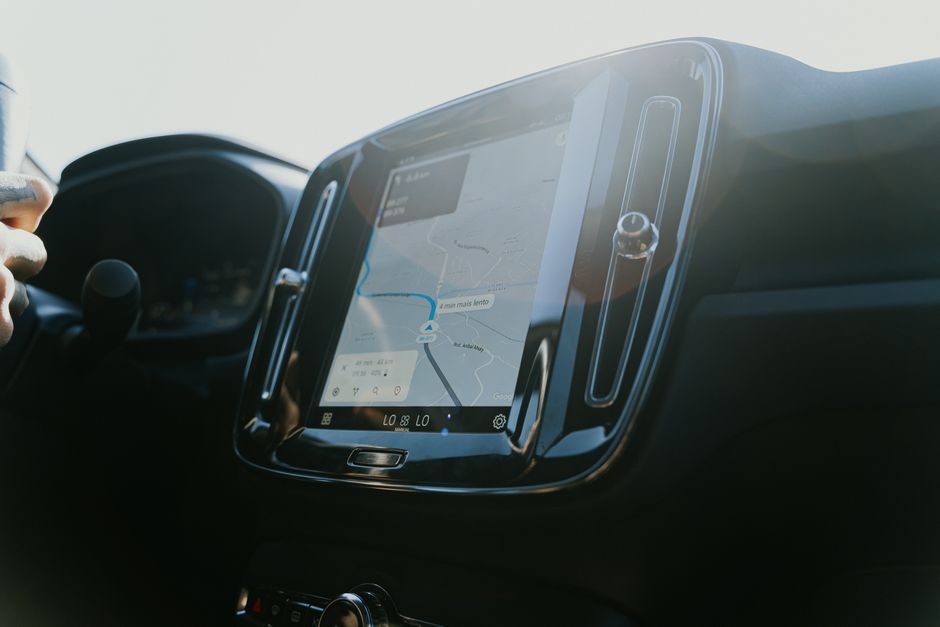
Google Maps, Apple Maps, and Waze all support offline maps that work when you lose cell service. Download maps for your region before long road trips. Apple Maps lets you download areas by tapping your profile picture and selecting Offline Maps. This feature also reduces data usage and extends battery life.
When you’re already navigating, you don’t need to cancel and re-enter everything to check alternative routes. In Apple Maps, swipe up from the bottom of the screen to see route options with current traffic conditions. In Google Maps, tap the route overview button to compare alternatives.
Sharing your ETA with family eliminates “where are you?” texts while driving. In Apple Maps, start navigation, then swipe up and tap Share ETA. Select a contact, and they’ll receive automatic updates as your arrival time changes with traffic.
Most navigation apps now let you report accidents, speed traps, and hazards through CarPlay. In Waze, tap the orange report button. In Google Maps, tap the plus icon. These reports help other drivers and improve real-time routing.
Audio and Entertainment Optimization
You can switch between Spotify, Apple Music, YouTube Music, and other streaming services without leaving the Now Playing screen. Swipe left or right on the album art in most apps to skip tracks. Press and hold the forward or back buttons to fast-forward through podcast ads or rewind to catch something you missed.
Create CarPlay-specific playlists with songs you won’t mind Siri misinterpreting. When you say “play my driving playlist,” you’ll get music you actually want instead of Siri’s best guess. Name playlists simply and distinctly for better voice recognition.
For podcasts and audiobooks, enable voice boost or volume leveling features in your app settings before connecting to CarPlay. This prevents sudden volume changes when switching between quiet dialogue and loud music segments. In Apple Podcasts, go to Settings > Playback and enable both options.
You can ask Siri to identify songs playing on the radio. Just say “Hey Siri, what song is this?” while music plays through your car speakers. Siri will listen and identify the track, then offer to add it to your library.
Communication Without Taking Your Eyes Off the Road
CarPlay reads incoming texts automatically when Announce Messages is enabled. Go to Settings > Notifications > Announce Notifications on your iPhone, then enable it for CarPlay. Siri reads new messages as they arrive and asks if you want to reply.
Smart reply suggestions appear for simple responses. When Siri reads a message, you’ll often see suggested replies like “On my way” or “See you soon” on your CarPlay display. Tap one for instant sending without speaking.
Multiple messaging apps work with CarPlay’s voice features, including WhatsApp, Messages, and others. Make sure third-party apps have notification permissions enabled in your iPhone settings. You can send messages through any supported app by saying “Hey Siri, send a WhatsApp message to…” followed by the contact name.
Driving Focus mode activates automatically when your iPhone detects driving motion or CarPlay connection. It silences unnecessary notifications while allowing important contacts to reach you. Configure it in Settings > Focus > Driving.
Advanced Siri Commands Most Drivers Never Use
Beyond basic music and navigation requests, Siri handles complex commands that combine multiple actions. Try “navigate home and play my podcast” or “call Mom and put her on speaker.” These compound commands execute both tasks without requiring separate requests.
You can control HomeKit smart home devices from your car. Say “Hey Siri, turn off the lights” as you leave, or “set the thermostat to 72 degrees” when you’re ten minutes from home. If you have a HomeKit garage door opener, “open the garage door” works as you pull into your driveway.
Create location-based automations that trigger when you connect to CarPlay. Using the Shortcuts app, build automations that send “leaving now” texts, start specific playlists, or adjust your phone settings automatically.
Ask Siri for real-time information without taking your hands off the wheel. “What’s the weather this weekend?” helps you plan, while “remind me to call the dentist when I get to work” creates location-triggered reminders.
Wired vs. Wireless CarPlay: Performance Trade-offs
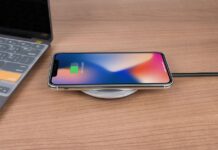
Wireless CarPlay offers obvious convenience, but wired connections deliver better performance in several ways. Wired connections charge your phone while you drive, eliminate connection lag that sometimes affects wireless setups, and avoid the battery drain that Bluetooth and Wi-Fi create.
If you have wireless CarPlay but experience frequent disconnections, try the wired connection instead. Some vehicles have unreliable wireless implementations that work better with a cable. Always keep a quality Lightning or USB-C cable in your car as a backup.
Wireless CarPlay drains battery faster than wired because your phone maintains both Bluetooth and Wi-Fi connections simultaneously. On longer drives, consider switching to wired mode or enabling Low Power Mode before connecting.
Aftermarket wireless CarPlay adapters exist for vehicles that only support wired connections. These dongles work reasonably well but add another device that can malfunction. If you go this route, stick with well-reviewed brands and keep the adapter’s firmware updated.
Creating CarPlay-Triggered Automations
The Shortcuts app transforms CarPlay from a simple display into a productivity automation system. Open Shortcuts on your iPhone, tap Automation, then create a new automation triggered by CarPlay connection. You can automatically send messages, adjust settings, start navigation to frequent destinations, or launch specific apps.
For your morning commute, create an automation that starts navigation to work, plays your preferred podcast, and texts your team that you’re on your way. All of this happens the moment you connect to CarPlay, without touching your phone.
Location-based automations work brilliantly with CarPlay. Set up a shortcut that triggers when you arrive at the grocery store parking lot, displaying your shared shopping list on the CarPlay screen. Or create one that starts navigation home when you leave the office.
You can share shortcuts across family devices through iCloud. Build a perfect CarPlay automation once, then share it with your spouse or kids so everyone benefits.
Safety Best Practices and Focus Modes
Minimize distraction by hiding notification previews on your CarPlay screen. In Settings > Notifications on your iPhone, disable previews for apps that send frequent alerts. You’ll still receive notifications but won’t see message content on your dashboard display.
Accessibility features make CarPlay safer for everyone. Go to Settings > Accessibility on your iPhone. Bold Text makes everything more readable at a glance. Reduce Motion eliminates distracting animations. Color Filters help drivers with color vision deficiencies distinguish map elements.
Enable Do Not Disturb While Driving in Focus settings. This mode silences calls and notifications automatically, sends auto-replies to people who text you, and allows emergency contacts to break through if they text “urgent.” It activates when your iPhone detects you’re driving or when you connect to CarPlay.
Legal considerations for CarPlay use vary by jurisdiction. Some states prohibit touching your phone screen while driving, even if mounted. Others restrict video content on displays visible to the driver. Familiarize yourself with local laws about in-car technology use.
Fixing Common CarPlay Connection Problems
When CarPlay keeps disconnecting, start with the simplest fixes. Unplug and reconnect your cable, or toggle Bluetooth and Wi-Fi off and on. Restart your iPhone by powering it down completely, not just locking the screen. Restart your vehicle’s infotainment system using the method specified in your owner’s manual.
Cable problems cause most wired CarPlay issues. Inspect your Lightning or USB-C cable for fraying or bent pins. Try a different Apple-certified cable. Third-party cables work inconsistently with CarPlay even if they charge your phone reliably.
If specific apps crash or won’t launch on CarPlay, check for updates in the App Store. Developers occasionally break CarPlay compatibility with updates, then fix it in subsequent releases. If an app consistently fails, delete and reinstall it.
For persistent problems, forget your car in iPhone Settings > General > CarPlay, then reconnect from scratch. This clears corrupted pairing data that sometimes causes mysterious issues.
Audio sync problems where sound arrives before or after video usually indicate a vehicle infotainment issue rather than an iPhone problem. Check with your car manufacturer for firmware updates to your head unit.
Preventing Battery Drain During CarPlay Use
CarPlay uses significant battery power, especially with wireless connections and navigation running simultaneously. Enable Low Power Mode before long drives where you can’t charge. This reduces background app refresh, visual effects, and automatic downloads without limiting CarPlay functionality.
Close unused apps on your iPhone before connecting to CarPlay. Apps running in the background consume battery even when you’re only using CarPlay apps.
Reduce screen brightness on your iPhone, not just your CarPlay display. Your phone’s screen stays active during CarPlay use, draining battery unnecessarily if it’s at full brightness.
Disable Background App Refresh for apps that don’t need it. Go to Settings > General > Background App Refresh and turn it off entirely or selectively disable it for power-hungry apps.
Making CarPlay Work for Your Specific Needs
The beauty of CarPlay lies in its flexibility. A delivery driver needs different optimizations than someone with a ten-minute commute. Think about your actual usage patterns and customize accordingly.
If you make frequent work calls, add your important contacts to Favorites in the Phone app. These appear first in CarPlay’s communication interface. Create a Favorites group specifically for people you call while driving.
For rideshare drivers, prioritize navigation app customization and keep passenger entertainment apps hidden. Enable Do Not Disturb mode to prevent personal notifications from displaying when passengers can see your screen.
Parents carpooling kids can create shortcuts that text arrival updates to multiple contacts simultaneously. Build a “pickup complete” automation that messages both parents when you leave the school parking lot.
The most powerful CarPlay tips and tricks are the ones you’ll actually use consistently. Start with two or three optimizations that address your biggest frustrations, master those, then gradually add more advanced features. Your daily drive deserves better than the default CarPlay experience, and these customizations deliver exactly that.
Frequently Asked Questions
Can you use CarPlay wirelessly on any car?
No, wireless CarPlay requires specific hardware support from your vehicle manufacturer. Cars with wireless CarPlay have it listed in their specifications. Older vehicles typically support only wired CarPlay through USB. You can add wireless functionality to wired-only vehicles using aftermarket wireless CarPlay adapters.
Why does my CarPlay keep disconnecting?
Frequent CarPlay disconnections usually result from faulty cables, outdated iOS versions, or corrupted pairing data. Try a different Apple-certified cable first, ensure your iPhone has the latest iOS update, and restart both your phone and vehicle infotainment system. If problems persist, forget your car in iPhone settings and reconnect from scratch.
How do I customize which apps appear on my CarPlay home screen?
Open Settings on your iPhone, navigate to General > CarPlay, select your vehicle, then tap Customize. You can remove apps by tapping the red minus icon or rearrange them by dragging. On the CarPlay display itself, press and hold any app icon until they wiggle, then drag to reorder.
What’s the best way to use Siri safely while driving?
Enable hands-free Siri activation so you never touch your phone or screen. Use compound commands like “navigate home and play my playlist” to accomplish multiple tasks with one request. Keep commands clear and simple, and let Siri read messages aloud rather than glancing at the screen to read them yourself.
Can I use multiple navigation apps on CarPlay?
Yes, you can install and switch between Apple Maps, Google Maps, Waze, and other navigation apps on CarPlay. Set your preferred default in Settings > General > CarPlay, but you can always open different navigation apps from your CarPlay home screen. Each app maintains its own settings and saved locations.
How do I prevent CarPlay from draining my phone battery?
Use a wired connection instead of wireless whenever possible, enable Low Power Mode before driving, close background apps, and reduce your iPhone screen brightness. Disable Background App Refresh for apps you don’t need while driving. Wireless CarPlay drains battery significantly faster than wired because it uses both Bluetooth and Wi-Fi simultaneously.