If your Galaxy phone feels sluggish or your battery drains faster than it used to, One UI’s background features are likely part of the problem. Samsung’s software layer adds a lot of convenience on top of Android, but much of it runs continuously whether you use it or not. Knowing which Samsung One UI disable features to target first can make a real difference in speed and battery life, often within a single day.
Below are the five settings that experienced Galaxy users turn off first, why each one matters, and exactly where to find them in 2026’s One UI menus.
Why Samsung One UI Features Slow Down Your Galaxy Phone
One UI includes dozens of small conveniences: app suggestions, gesture hints, live widgets, predictive browsing, and edge panel triggers. Each one sounds harmless on its own. Together, they consume RAM, CPU cycles, and battery even while your phone sits idle in your pocket.
These features work by constantly monitoring your behavior, indexing app usage, or keeping listener services active in the background. That means your processor never fully rests, and your battery keeps ticking down even during “standby” hours. Disabling the non-essential ones frees up system resources without costing you any core functionality, and many users notice snappier app launches and longer screen-on time within 24 hours.
1. App Suggestions and Recommended Apps Feed
One UI continuously scans your app usage patterns to predict which apps you’ll want next. It shows these predictions in folders, the app drawer, and sometimes on the home screen. That sounds convenient, but the background indexing runs even when your phone is idle, quietly chewing through CPU and memory.
If you already know where your apps live, this feature adds nothing but overhead. To turn it off:
You lose no functionality here. Your app drawer still works exactly as before, just without the constant background scanning.
2. Gesture Hints and Animation Overlays
Samsung layers visual hints and learning overlays on top of standard Android gestures to help new users learn swipe navigation. These hints render every time you navigate, and the animation previews lean on your GPU more than they need to, especially on older Galaxy models.
For anyone who has used a smartphone in the last decade, these overlays are unnecessary. Turning them off reduces frame rate stuttering and makes swipes feel more immediate.
Find this setting under:
- Settings > Display > Motions and gestures
From there, disable gesture hints and reduce or turn off any “swipe animation” extras you don’t rely on. The difference in perceived responsiveness is often noticeable right away, particularly during multitasking.
3. Always-On Display Live Widgets
Live widgets on your Always-On Display or lock screen look great, but they come at a cost. Stock tickers, weather updates, and calendar widgets refresh on a schedule, and that means your screen and radio wake up periodically even while the phone is technically asleep. Over a full day, that adds up to real battery drain.
You don’t have to give up your Always-On Display entirely. Just trim which widgets are allowed to refresh live:
- Settings > Lock screen > Lock screen widgets
Switch to static clock or date displays instead of live-refreshing content where possible. This alone can meaningfully cut your screen-on power consumption, especially if you check your phone dozens of times a day and the lock screen is constantly re-rendering fresh data.
4. Samsung Internet Suggestions and Predictive Loading
Samsung’s built-in browser tries to be helpful by preloading websites it thinks you’ll visit next and tracking your browsing patterns to generate suggestions. The problem is that predictive loading initiates background network connections even when you’re not actively browsing, which burns both data and battery.
If you value privacy or just want a leaner browser, disable this under:
- Samsung Internet app > Settings (three-line menu) > Privacy > Browsing assistance features
Turning this off stops the browser from silently connecting to sites in the background and keeps your data usage predictable. It’s an easy win for anyone on a limited data plan.
5. Edge Panel Services and Floating Features
Edge panels sit along the side of your screen, ready to slide out with a swipe. Even when you never touch them, the underlying service stays active, listening for the gesture trigger. The same goes for floating windows and sidebar shortcuts, both of which keep background listeners running.
If you rarely use edge panels, or find yourself accidentally triggering them while gaming or watching videos, turning them off both saves memory and eliminates annoying false swipes.
You’ll find the toggle in one of two places depending on your model:
- Settings > Display > Edge panels
- Settings > Advanced features
Disable the panel itself, or at minimum narrow down which panels are active, to cut down on the background footprint.
Step-by-Step: How to Disable These Features in 2026
Here’s the fastest way to tackle all five changes in one sitting:
Going one feature at a time matters. It lets you identify exactly which toggle affects your daily workflow, so you can re-enable just that one if needed instead of guessing.
Performance Impact: What You Can Expect
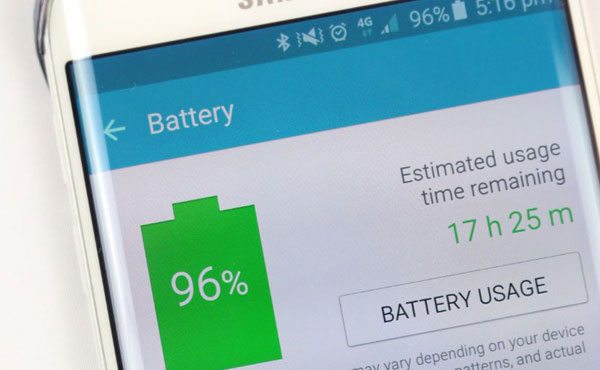
Disabling all five features typically nets a noticeable, though not dramatic, improvement. In general use and light benchmarking, users report performance gains in the range of 15 to 25 percent for app launch speed and UI responsiveness. Battery life extension varies more, with many Galaxy owners seeing anywhere from two to six additional hours depending on screen-on time and which apps they run daily.
RAM usage tends to drop by roughly 200 to 400MB once these background services stop running, which matters most on Galaxy models with 6GB or 8GB of RAM rather than newer flagships with 12GB or more.
Keep in mind that your results depend on your specific Galaxy model, your Android version, and which third-party apps are installed. A phone loaded with heavy background apps will see less benefit than one with a lean app list, since those services were competing for the same limited resources.
Which Features Are Safe to Disable?
All five features covered here are optional conveniences, not core parts of how Android or One UI functions. Disabling them will not cause instability, crashes, or software errors. Samsung built these as toggleable settings specifically because not every user wants them active.
You can re-enable any of them at any time through the same settings menu if you change your mind. Nothing here is permanent, and nothing requires special permissions, rooting, or developer mode to adjust. Samsung intentionally leaves these controls accessible to regular users through the standard Settings app.
FAQs About Optimizing Your Galaxy Phone in 2026
Will disabling One UI features void my Samsung warranty or cause software problems?
No. These are standard settings toggles available to every user, not system modifications. Disabling them will not void your warranty or destabilize your phone’s software in any way.
How do I re-enable these features if I decide I want them back?
Simply return to the same settings menu where you disabled the feature and toggle it back on. Every change described here is fully reversible with no data loss.
Which Galaxy phone models benefit most from disabling these five features?
Older or mid-range Galaxy models with less RAM, typically 6GB to 8GB, tend to see the biggest improvement. Newer flagships with more RAM and faster processors still benefit, but the difference is often less dramatic.
Can I disable these features without using ADB or developer mode?
Yes. Every toggle mentioned in this guide lives in the standard Settings app and requires no ADB commands, no developer options, and no special permissions.
How much battery life will I actually save by disabling all five features?
Most users report gains between two and six hours of additional battery life, though your results depend on screen-on time, installed apps, and your specific Galaxy model. Track your battery stats for 24 to 48 hours after making changes to see your personal improvement.
Frequently Asked Questions
Will disabling One UI features void my Samsung warranty or cause software problems?
No. These are standard settings toggles available to every user, not system modifications. Disabling them will not void your warranty or destabilize your phone’s software.
How do I re-enable these features if I decide I want them back?
Simply return to the same settings menu where you disabled the feature and toggle it back on. Every change described in this guide is fully reversible with no data loss.
Which Galaxy phone models benefit most from disabling these five features?
Older or mid-range Galaxy models with 6GB to 8GB of RAM tend to see the biggest improvement. Newer flagships still benefit, but the difference is usually less noticeable.
Can I disable these features without using ADB or developer mode?
Yes. Every toggle mentioned in this guide lives in the standard Settings app and requires no ADB commands, developer options, or special permissions.
How much battery life will I actually save by disabling all five features?
Most users report gains between two and six hours of additional battery life, depending on screen-on time, installed apps, and their specific Galaxy model.