
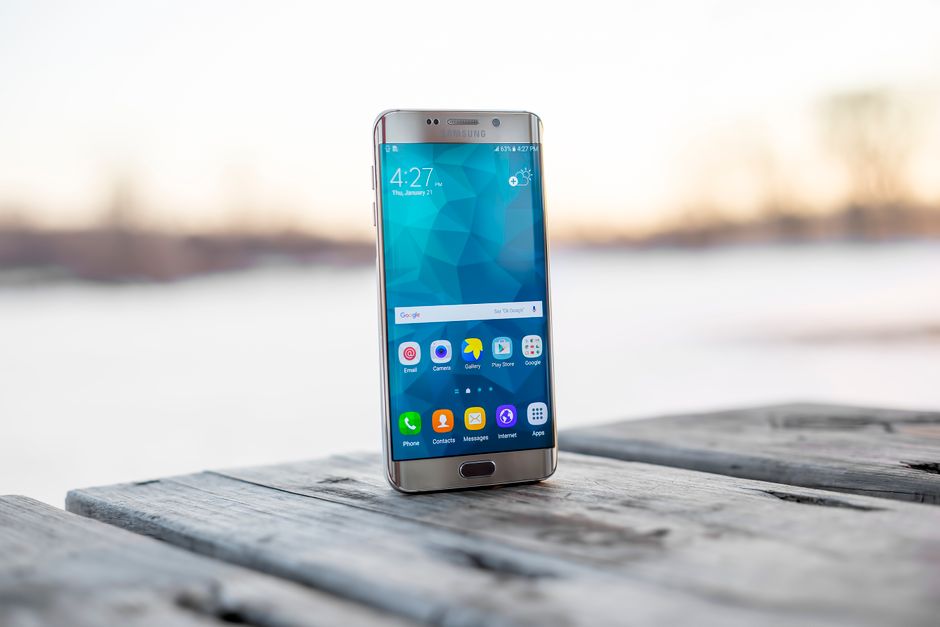
I noticed my Galaxy phone’s battery dropping fast even when I wasn’t using it much. After some digging, I found the culprit: constant location network scanning running quietly in the background. One setting change later, my battery life stretched by several hours, and I didn’t lose any core functionality I actually cared about.
If you’re seeing similar battery drain on your Samsung phone, disabling Galaxy phone battery location networks scanning is one of the easiest fixes you can make today. It takes about two minutes, requires no special tools, and works on nearly every modern Galaxy device. Here’s exactly why it happens, how much battery you can realistically gain, and how to do it without breaking the apps you rely on.
Why Location Networks Are Silently Draining Your Galaxy Battery
Your Galaxy phone doesn’t just use GPS satellites to figure out where you are. It also constantly scans nearby Wi-Fi networks and Bluetooth signals to triangulate your location faster and more accurately, a feature Samsung calls improving location accuracy.
This background scanning happens even when you’re not actively using a maps app. Your phone’s radios wake up repeatedly throughout the day, checking for network signals, comparing them against location databases, and refining your position. That constant radio activity draws power continuously, even while your screen is off and your phone sits idle in your pocket.
Samsung enables this by default because it genuinely improves location accuracy for navigation, weather apps, and location-tagged photos. The tradeoff is that your phone’s Wi-Fi and Bluetooth chips rarely get to fully rest. For most people, that convenience isn’t worth the hidden battery cost.
How Much Battery Life Can You Actually Gain in 2026?
Real-world results vary, but many Galaxy users report noticeable improvements after turning off location network checking. Some see an extra hour or two of screen-on time per charge. Others notice their standby drain drops significantly overnight, when the phone should barely be using any battery at all.
Several factors determine how much you’ll actually save:
- How many apps request location access on your phone (more apps means more frequent location checks)
- Your phone’s age and battery health, since older batteries show drain more dramatically
- How often you use navigation or location-based apps day to day
- Whether Bluetooth and Wi-Fi scanning were already heavy contributors in your usage pattern
With location network checking on, your phone’s radios stay semi-active around the clock, quietly sipping power. With it off, those radios only activate when you specifically request location data, like opening a maps app. The difference shows up most clearly in standby battery drain, the percentage your phone loses overnight while you sleep.
Step-by-Step: Disable Location Network Checking on Your Galaxy Phone
Turning this off takes just a few taps. The exact menu wording varies slightly between One UI versions, but the path stays largely consistent across recent Galaxy models.
On some newer Galaxy models, you’ll find these Wi-Fi and Bluetooth scanning toggles under Settings > Location > Advanced settings rather than inside the main Location menu. If you can’t find “Locating method,” look for Location services or Location accuracy instead, since Samsung occasionally renames these menus between software updates.
Once you’ve made the change, give your phone a day or two before judging the results. Battery improvements from this kind of fix show up more clearly over a full charge cycle than in the first few hours.
What You Lose When You Turn Off Location Networks
Nothing is free, and there are real tradeoffs here. Turning off network-based location checking means your phone relies solely on GPS satellites, which can be slower to lock onto your position, especially indoors or in dense urban areas with tall buildings blocking satellite signal.
You’ll notice this most when opening a navigation app cold. It might take an extra 10 to 20 seconds to pinpoint your exact location compared to when Wi-Fi and Bluetooth scanning helped speed things up. Once GPS locks on, though, accuracy while moving stays largely the same.
Apps that still work fine include most navigation apps, weather apps, and camera geotagging, since GPS alone handles these adequately once it acquires a signal. Apps that may struggle more include indoor mapping features in malls or airports, some fitness apps that rely on quick location fixes, and certain location-sharing features that use Wi-Fi triangulation for faster updates.
Emergency services deserve special attention here. Your phone can still transmit an emergency location during a 911 or emergency call regardless of your location network settings, since emergency location technology typically overrides personal privacy settings during active emergency calls. Your safety features remain intact.
The Smarter Alternative: Selective Location Settings in 2026
Rather than an all-or-nothing approach, consider using Samsung’s built-in location modes to strike a better balance. Galaxy phones typically offer a few accuracy tiers:
- High accuracy: Uses GPS, Wi-Fi, and mobile networks together (most battery drain, best precision)
- Battery saving: Uses Wi-Fi and mobile networks without GPS (moderate drain, good for general use)
- Device only (GPS only): Uses GPS exclusively (least drain, slower initial lock)
Instead of permanently disabling network scanning, you can switch to “Device only” mode most of the time and only toggle to “High accuracy” when you need precise navigation, like during a road trip or when using a ride-share app.
Another underused tool is app-level location permissions. Go to Settings > Apps > [App name] > Permissions > Location and set less-critical apps to “Ask every time” or “Don’t allow.” This stops apps you rarely use for navigation, like social media or shopping apps, from quietly checking your location in the background and triggering unnecessary network scans.
Other Galaxy Battery Drains to Address Alongside Location Networks
Location network scanning is rarely the only battery drain on your phone. If you want to maximize your results, tackle these common culprits too:
- Background app refresh: Many apps continue syncing data, checking notifications, and updating content even when closed. Check Settings > Apps > [App name] > Battery to restrict background activity for apps you don’t need running constantly.
- Screen brightness and always-on display: Your screen remains one of the biggest battery consumers on any phone. Lowering brightness and limiting always-on display hours can save meaningful power.
- Network connectivity scanning: Your phone constantly searches for stronger 5G signals and switches between networks. In areas with weak coverage, this searching intensifies and drains battery faster than usual.
Addressing all three alongside location network settings typically produces a much bigger cumulative battery improvement than any single fix alone.
Should You Disable Location Networks Permanently?
For most users, a permanent full disable isn’t necessary or ideal. It makes the most sense if you rarely use navigation apps, primarily use your phone indoors or in familiar areas, or you’re trying to squeeze maximum battery life out of an aging device.
A balanced approach works better for most people. Switch to “Device only” mode as your default, then temporarily enable “High accuracy” when you’re traveling somewhere unfamiliar or relying heavily on turn-by-turn navigation. This gives you the battery savings most of the time while keeping full accuracy available on demand.
Monitor your results using Settings > Battery > Battery usage, which shows how much power location services consume over time. Check this weekly for the first month after making changes, then periodically afterward to make sure the setting hasn’t reverted after a software update, which occasionally happens with major One UI updates.
Small settings changes rarely feel dramatic in the moment, but this one adds up fast. A couple of extra hours of battery life every single day, multiplied across a week, means noticeably less time spent hunting for a charger.
Frequently Asked Questions
Does turning off location networks affect Google Maps or navigation apps?
Navigation apps still work fine using GPS alone, though the initial location lock may take a bit longer. Once GPS acquires your position, turn-by-turn accuracy remains largely unchanged.
Will emergency services still work if I disable location network checking?
Yes. Emergency calls typically trigger emergency location technology that overrides your personal location settings, so your position can still be shared with emergency responders regardless of this setting.
How do I turn location networks back on if I change my mind?
Go to Settings > Location > Locating method and switch back to “GPS, Wi-Fi, and mobile networks” or “High accuracy.” Re-enable any Wi-Fi or Bluetooth scanning toggles you previously turned off.
Which Galaxy models have this location network feature?
Most Galaxy phones running recent versions of One UI include these location accuracy settings, including current Galaxy S, A, and Z series devices. Menu wording may vary slightly between software versions.
Can I schedule location networks to turn off automatically?
Samsung doesn’t offer a built-in scheduler for this specific setting, but you can pair it with Bixby Routines to automatically switch location modes based on time of day or your location.







