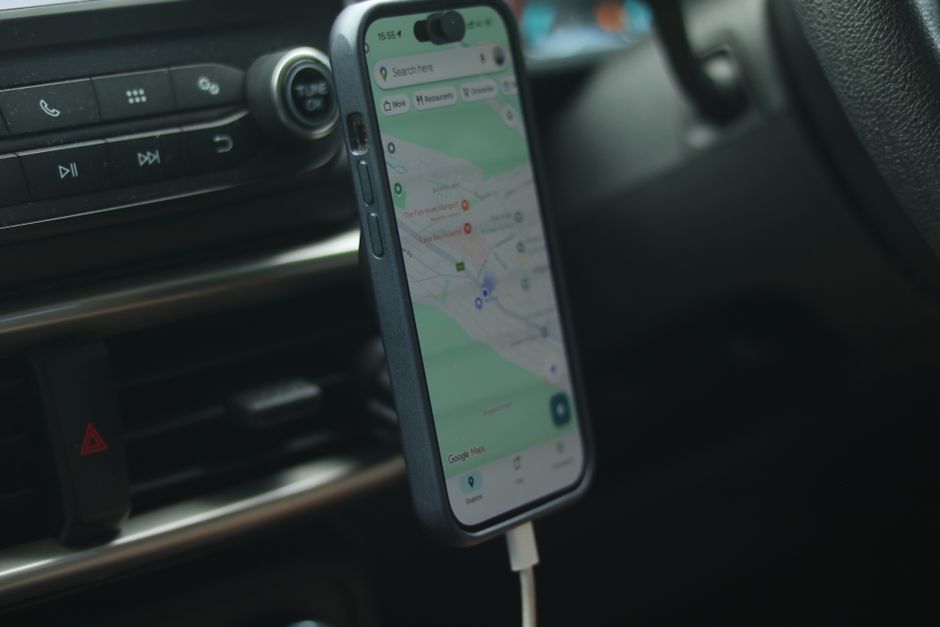
You’re three hours into a road trip and your phone feels like it just came out of the microwave. If Android Auto overheating has ruined a drive or two, you’re not imagining it. Continuous GPS tracking, a maxed-out screen, and constant Bluetooth streaming push your phone’s processor hard for hours at a time, and all that work generates heat with nowhere to go.
The good news: you don’t need a new phone or a different app. A handful of settings tweaks and a smarter mounting setup can keep your device noticeably cooler on even the longest drives. Here’s why it happens and six ways to fix it before your next trip.
Why Android Auto Makes Your Phone Run Hot
Android Auto asks a lot of your phone at once, and that combination is what generates so much heat. GPS processing alone requires continuous location tracking, which keeps your phone’s radios and processor active for the entire drive instead of just occasionally checking in.
On top of that, your screen is usually at or near maximum brightness so you can see the map in daylight, and bright displays are one of the biggest battery and heat drains on any smartphone. Real-time map rendering adds another layer of strain, especially in heavy traffic or dense cities where the app constantly recalculates routes and redraws visuals.
Background apps compound the issue if they’re still pinging for updates, syncing, or refreshing while you drive. Add in direct sunlight hitting your dashboard mount, which can heat the phone’s internal components well beyond what the software alone would cause, and you’ve got a recipe for a genuinely hot device. Wireless connectivity, including Bluetooth audio streaming and a live data connection for maps, adds even more processing overhead on top of everything else.
1. Use a Phone Mount with Airflow Design
Your mount matters more than most drivers realize. Vent-mounted holders let air circulate around the phone as your climate control system runs, which naturally pulls heat away from the device.
Dashboard mounts, by contrast, often place your phone directly in the sun and against a hot surface, which is one of the fastest ways to trigger overheating. If you must use a dashboard mount, angle it away from direct sunlight and avoid letting the phone touch the dash itself.
Look for mounts that elevate the phone slightly rather than pressing it flat against a surface. And skip the thick, sealed phone case while driving long distances. Cases designed for drop protection often trap heat against the body of the phone, which is the opposite of what you want during a multi-hour drive.
2. Reduce Screen Brightness Automatically
Brightness is one of the easiest things to fix, and it makes a real difference. Turn on adaptive brightness in your phone’s display settings so the screen adjusts automatically instead of staying pinned at maximum output.
Check Android Auto’s own display settings too. Some versions include a brightness override that forces the screen brighter than your phone’s default, which undoes any power savings from adaptive brightness. Turning that override off lets your phone manage brightness more intelligently.
If your phone has an OLED screen, switching to dark mode reduces power draw since darker pixels use less energy. For stretches where you know the road well or you’re just listening to music, try audio-only navigation with the screen off. You’ll still get turn-by-turn voice prompts without the display working overtime.
3. Close Background Apps and Disable Unnecessary Features
Every app running in the background competes for the same processor and battery resources that Android Auto needs. Before a long trip, close out apps you’re not using, especially social media, games, or anything that refreshes content automatically.
Location services are another hidden drain. Go into your settings and disable location access for apps other than Google Maps or whichever navigation app you’re using. There’s no reason five different apps should be tracking your GPS position at once.
Bluetooth connections to devices you’re not actively using, like a smartwatch or a second pair of earbuds, also add unnecessary overhead. Disconnect anything that isn’t essential to the drive. It’s also worth turning off Wi-Fi scanning and mobile hotspot features, since both keep radios active and searching even when you’re not connected to anything.
4. Enable Battery Saver or Reduce Performance Mode
Most phones include a Battery Saver mode that throttles CPU performance and limits background activity, and it’s genuinely useful for long drives, not just low-battery emergencies. Turning it on trades a little bit of speed for noticeably less heat.
If your phone has a performance limiter or a similar option buried in developer settings, that can help too, though it’s a more advanced tweak. A simpler win: if your phone has a high refresh rate display running at 120Hz, dropping it to 60Hz in display settings reduces how hard the screen and processor work together.
Reducing or disabling animations is another small but effective step. Fewer visual transitions mean less rendering work for your processor, which translates to a little less heat over a multi-hour drive.
5. Improve Ventilation and External Cooling
Physical airflow makes a bigger difference than most people expect. Point one of your car’s air vents directly at your mounted phone, especially if you’re running the air conditioning. That steady stream of cooler air pulls heat away from the device continuously.
For frequent road-trippers, cooling phone cases or small active cooling attachments exist specifically for this problem. Some clip onto the back of your phone and use a tiny fan to draw heat away during extended navigation sessions. Keep your phone away from any heat source in the car, including spots with direct dashboard exposure where sunlight bakes the surface for hours.
If you drive long distances often, a portable fan designed for phone mounts is a worthwhile investment. They’re inexpensive, and they solve the overheating problem at its physical source rather than just limiting what the phone can do.
6. Update Android Auto and Check for Software Issues
Sometimes the fix isn’t hardware at all. Outdated software can cause your phone to work harder than it should. Install the latest updates for Google Play Services and Android Auto as soon as they’re available, since Google regularly ships performance and efficiency improvements.
If your phone still runs hot after updating, clear the Android Auto cache. Corrupted cache data can cause the app to process information inefficiently, generating extra heat for no good reason. You’ll find this option in your phone’s app settings under storage.
Check whether developer mode or USB debugging is enabled on your device. These features can increase background processing and aren’t necessary for everyday driving. If none of that resolves the Android Auto overheating problem, try uninstalling and reinstalling the app, or as a last resort, consider a factory reset if the issue persists across multiple trips.
Quick Temperature Check: Warning Signs Your Phone Is Too Hot
Your phone usually tells you when it’s struggling, if you know what to look for. Watch for these signs during a drive:
- Slower performance or apps becoming unresponsive, which signals thermal throttling
- Automatic screen dimming, a built-in protection mechanism that kicks in as temperatures rise
- Faster battery drain than you’d normally expect for the same drive
- A noticeably warm back panel that’s uncomfortable to touch
- An on-screen warning about high temperature, which some phones display directly
If you see any of these, it’s time to address the heat before it gets worse.
Prevention Tips for Your Next Road Trip in 2026
A little preparation goes a long way toward keeping your phone comfortable on long drives. Test your mount and settings on a short trip first, so you’re not troubleshooting overheating for the first time three hours from home.
Charge your phone fully before you leave. Charging while actively navigating generates its own heat, and combining a charging cycle with GPS and screen use is a fast way to overheat your device. Take short breaks every couple of hours, both for yourself and to let your phone cool down naturally away from the mount.
Consider checking your phone’s built-in battery and temperature diagnostics, or a trusted third-party monitoring app, if you’re planning a particularly long drive. And before travel season ramps up, make sure your phone’s firmware and your navigation apps are fully updated. A few minutes of maintenance now can save you from a hot, sluggish phone later.
Android Auto doesn’t have to turn your phone into a pocket toaster. With the right mount, a few settings adjustments, and a little extra airflow, you can keep your device cool and reliable no matter how many miles you’re covering.
Frequently Asked Questions
Is it safe to use Android Auto for 8+ hours continuously?
Yes, as long as your phone has proper ventilation and you’re managing brightness and background apps. Take periodic breaks every couple of hours so the phone can cool down naturally, especially on hot days or long drives in direct sunlight.
Can overheating damage my phone permanently?
Occasional overheating usually triggers safety features like throttling and dimming, which prevent lasting damage. However, repeated or prolonged exposure to high temperatures can degrade battery health over time and shorten your phone’s overall lifespan.
Why does my phone overheat with Android Auto but not other apps?
Android Auto combines several heavy tasks at once, including continuous GPS tracking, maximum screen brightness, real-time map rendering, and constant Bluetooth or data use. Most other apps only use one or two of these resources at a time, so the combined load is what generates extra heat.
What’s the ideal temperature range for safe phone operation?
Most smartphone manufacturers recommend operating temperatures between roughly 32 and 95 degrees Fahrenheit (0 to 35 degrees Celsius). Staying within this range helps protect battery health and prevents the performance throttling that kicks in when a phone gets too hot.
Should I use airplane mode with Android Auto to reduce heat?
No, airplane mode disables the data connection and GPS features that Android Auto needs to function properly. Instead, disable unnecessary background features like Wi-Fi scanning and unused Bluetooth connections while keeping your data and location services active for navigation.