
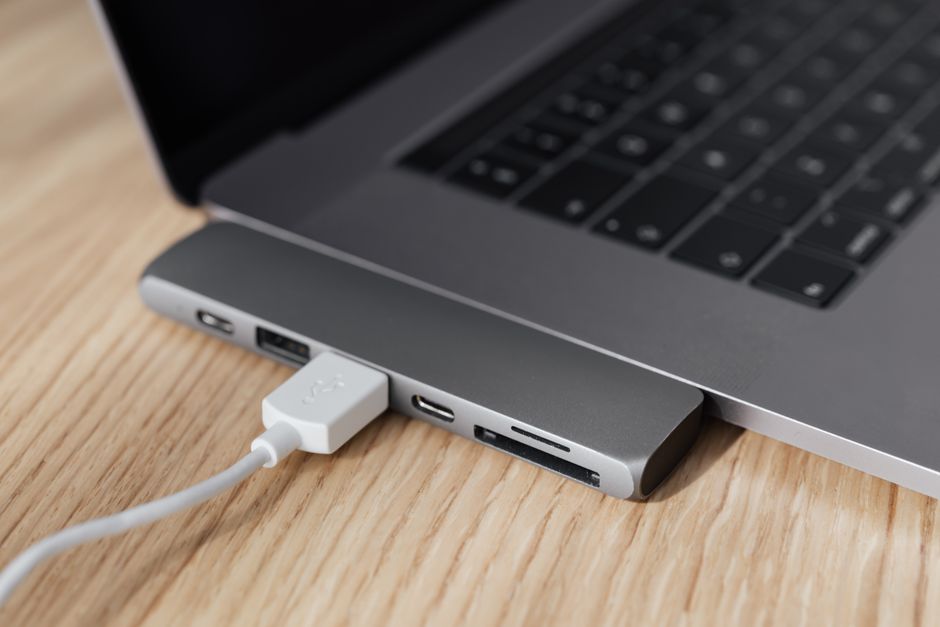
Take a look at the back or side of your PC right now. Chances are you’ve got at least one or two USB ports sitting completely empty. Most people reserve these for a keyboard, a mouse, or the occasional flash drive, and then forget the rest exist. That’s a missed opportunity, because a new wave of USB gadgets for PC setups can turn those idle ports into genuinely useful tools for work, repair projects, and even home comfort.
Modern desktops and laptops ship with more USB connectivity than ever, often mixing USB-A, USB-C, and Thunderbolt-compatible ports on a single machine. Yet most of that bandwidth goes unused. Below are five practical, sometimes surprising devices that plug straight into a spare port and immediately start earning their keep.
Why Your PC’s USB Ports Are Underutilized in 2026
USB has quietly evolved far beyond simple data transfer. Today’s USB standards deliver enough power and bandwidth to run cameras, sensors, and diagnostic tools that used to require dedicated hardware or expensive lab equipment.
Most people never explore this because they don’t know these gadgets exist. They see a USB port and think “storage” or “peripheral,” not “diagnostic tool” or “environmental sensor.” That mental gap means a lot of genuinely helpful tech sits on store shelves while PCs collect dust in their unused ports.
Whether you’re a hobbyist tinkering with electronics, a content creator chasing accurate colors, or just someone who wants a more stable internet connection, there’s likely a USB gadget built for that exact problem. Here are five worth knowing about.
1. USB Thermal Cameras for Temperature Monitoring
A USB thermal camera gives you real-time heat mapping of your PC’s internals, or anything else you point it at, without cracking open the case. Plug it in, install the companion software, and you’ll see a live color-coded image showing exactly where heat is building up.
This is especially useful for:
- Diagnosing an overheating CPU or GPU without guesswork
- Checking whether case fans are actually cooling the components they’re aimed at
- Spotting failing power supplies or overworked capacitors before they fail
- Inspecting server racks or workstation clusters for hotspots
Gaming PCs and professional workstations benefit the most, since sustained heavy loads make thermal issues more likely. Instead of running benchmark software and hoping for accurate sensor readings, you get a visual answer in seconds.
2. USB Microscopes for Detailed Inspection Work
If you’ve ever squinted at a tiny solder joint or tried to inspect a scratch on a ring, a USB microscope solves that problem instantly. These compact digital microscopes plug into any open port and stream a magnified live video feed straight to your monitor.
Magnification levels vary by model, typically ranging from around 25x up to 1000x, which covers everything from basic inspection to fine detail work. Common uses include:
- Soldering and rework on circuit boards
- Inspecting jewelry, coins, or collectibles
- Checking PCB components for damage or corrosion
- Examining fabric, skin, or biological samples for hobbyist science projects
What makes USB microscopes appealing is the price. Many capable models cost less than a nice pair of headphones, making them accessible to hobbyists, not just repair shops and labs.
3. USB Ambient Light Sensors and Color Calibrators
Anyone who edits photos, grades video, or just wants a monitor that doesn’t strain their eyes should consider a USB ambient light sensor or color calibrator. These small devices measure the light in your room and adjust your screen’s brightness and color temperature to match, so what you see on screen looks accurate no matter the time of day.
For creative professionals, this is close to essential. Colors that look great under harsh overhead lighting can look completely different in natural daylight or dim evening light. A calibrator keeps your display consistent, which matters if you’re delivering finished photos or video to a client.
Even outside of professional work, these sensors help by:
- Reducing eye strain during long work sessions
- Automatically dimming screens in low light
- Keeping color output consistent across multiple monitors
- Integrating directly with your operating system’s display settings for real-time adjustments
4. USB Network Adapters and Ethernet Dongles
Wi-Fi is convenient, but it’s not always reliable. A USB network adapter or Ethernet dongle gives you a wired connection option whenever you need faster speeds or a more stable link, without waiting on router upgrades or troubleshooting wireless interference.
This is one of the simplest and most immediately useful gadgets on this list. Available in both USB-A and USB-C versions, these dongles work well for:
- Laptops that dropped built-in Ethernet ports in favor of a slimmer design
- Backup connectivity when Wi-Fi goes down or gets congested
- Gaming and video calls, where a wired connection reduces latency and drops
- Situations where public or shared Wi-Fi is too slow or unreliable to trust
If your work or gaming setup depends on a dependable connection, keeping one of these dongles in a desk drawer is cheap insurance.
5. USB Weather Stations and Environmental Monitors
A USB weather station or environmental monitor tracks temperature, humidity, and sometimes air quality right from your desktop, displaying the data through a small widget or dashboard app. It sounds like a novelty, but it has real practical value.
Server rooms, recording studios, greenhouses, and even home offices benefit from knowing when conditions drift outside an ideal range. Many of these devices also log historical data, so you can spot trends over days or weeks instead of relying on a single snapshot.
Typical benefits include:
- At-a-glance readings without needing a separate weather app or physical thermometer
- Alerts when humidity or temperature crosses a set threshold
- Historical logging to catch slow environmental drift over time
- Better protection for sensitive equipment that’s vulnerable to heat or moisture
How to Choose the Right USB Gadget for Your Needs
Not every gadget on this list will matter to every reader, and that’s fine. The goal is matching the device to an actual pain point in your workflow rather than buying gadgets for the sake of it.
Start by asking a few honest questions:
Taking ten minutes to answer these questions before buying will save you from returning a gadget that never gets used.
Compatibility and Installation Tips
Most USB gadgets aim for plug-and-play simplicity, and the good ones deliver on that promise. Still, a little preparation makes setup smoother.
- Check driver support first. Visit the manufacturer’s site before buying to confirm current drivers exist for your version of Windows or macOS.
- Mind your USB version. Older USB 2.0 ports will still work with most of these gadgets, but you may see slower data transfer or reduced video feed quality on cameras and microscopes.
- Use a powered hub if needed. Some gadgets, especially thermal cameras and microscopes with built-in lighting, draw more power than a basic port can reliably supply. A powered USB hub prevents dropouts or devices resetting mid-use.
- Keep firmware updated. Manufacturers occasionally release updates that improve stability or add features, so check for updates after your initial setup.
Frequently Asked Questions About USB Gadgets
Most of these devices are designed to be low-maintenance additions to a setup you already have. A little basic troubleshooting knowledge goes a long way toward getting them running smoothly and keeping them that way.
If you run into persistent issues, check the Microsoft Windows support hub for driver and USB troubleshooting guides, since many connectivity problems trace back to outdated drivers rather than the gadget itself.
Frequently Asked Questions
Can I use multiple USB gadgets at the same time on one PC?
Yes, most modern PCs can run several USB gadgets simultaneously without issue. If you run out of physical ports, a powered USB hub lets you add more devices while keeping enough power available for each one.
Do USB gadgets require special drivers or software to work?
Many USB gadgets are plug-and-play, but devices like thermal cameras, microscopes, and color calibrators usually need dedicated software to display data or footage properly. Always check the manufacturer’s site for the latest drivers before setup.
What’s the difference between USB 2.0 and USB 3.0 for these gadgets?
USB 3.0 and newer versions offer significantly faster data transfer and more stable power delivery than USB 2.0. Gadgets that stream video, like microscopes and thermal cameras, perform noticeably better on USB 3.0 or higher ports.
Are USB gadgets compatible with both Windows and Mac?
Most mainstream USB gadgets support both Windows and macOS, but software features can vary between platforms. It’s worth checking the product listing or manufacturer site to confirm full feature support for your specific operating system before buying.
How much power do USB gadgets consume from my PC?
Power draw varies widely, with simple sensors using very little and devices like microscopes with built-in LED lighting drawing more. If you notice devices disconnecting randomly, a powered USB hub usually solves the problem by supplying extra power.







