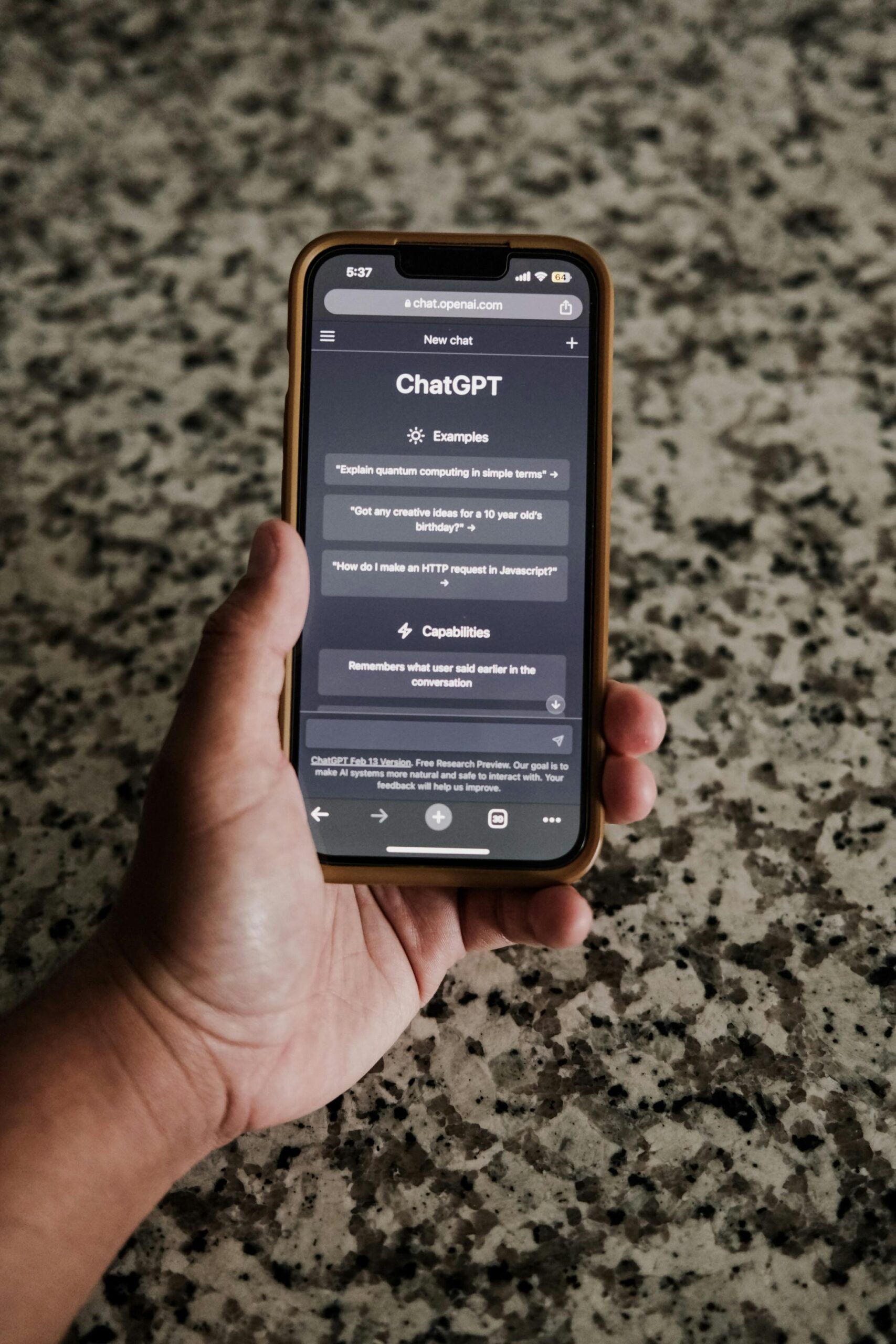
If your iPhone 17 Pro is overheating during charging or Camera Use, you are not alone. Owners of the iPhone 17 Pro and iPhone 17 Pro Max have widely reported overheating concerns, especially during 4K video recording, extended camera sessions, and fast charging. Many users describe warmth near the camera module, battery drain while plugged in, occasional lag, and, in rare cases, random restarts.
This issue has surfaced across online forums and support communities since the device launch. Most cases appear linked to heavy processing loads and software behaviour rather than hardware failure. The good news: for most users, the problem can be reduced or fixed with simple adjustments.
Here is what causes the overheating, what you can do right now, and when it is time to seek professional service.
Why Is the iPhone 17 Pro Overheating?
Modern flagship smartphones operate like compact computers. The iPhone 17 Pro series features advanced image processing, AI-driven photo enhancements, high-resolution sensors, and fast-charging technology. All of that generates heat.
Overheating most commonly occurs in three situations:
-
During extended camera use, especially 4K or Pro video recording
-
While fast charging
-
When multiple background apps are running heavily
Heat near the camera module is common because image processing and stabilization happen directly beneath that area. Recording high-resolution video requires constant encoding and sensor activity. That creates sustained thermal output.
Charging heat happens for a different reason. Fast charging pushes higher wattage into the Battery. That creates temporary warmth, especially if the device is being used at the same time.
In most cases, this heat is expected behaviour. The device is designed to manage it. But if temperatures feel excessive, or if performance drops sharply, intervention is needed.
Signs Your iPhone Is Overheating.
Some warmth is typical. But these symptoms suggest a deeper issue:
-
Phone becomes too hot to hold comfortably
-
The Battery drains quickly while charging
-
Charging stops intermittently
-
Apps lag or freeze
-
Phone restarts without warning
-
The temperature warning message appears
If you experience repeated shutdowns or charging interruptions, you may be dealing with more than routine thermal management.
Quick Fixes You Can Try Immediately
If your device feels hot, start here. These steps solve many overheating complaints.
1. Force Quit Heavy Apps and Restart
Camera apps, social media apps, and navigation tools often continue background processes.
To force quit:
-
Swipe up and hold from the bottom of the screen
-
Close heavy apps manually
-
Restart your phone
A simple reboot clears temporary system strain.
2. Check Battery Usage for Problem Apps
Go to Settings and tap Battery.
Look for apps that consume an unusually high percentage of background usage. If one app stands out:
-
Update the app
-
Delete and reinstall it
-
Remove it temporarily
Background processing is one of the most common hidden causes of overheating.
3. Reduce Background Activity
Temporarily turn off features that constantly refresh data.
Go to Settings and adjust:
-
Background App Refresh
-
Location Services for non-essential apps
-
Automatic uploads to cloud services
These services quietly use processing power.
4. Avoid Using the Camera While Charging
This is one of the most effective behavioural fixes.
Recording 4K video while fast charging doubles the thermal load. The processor works hard while the Battery absorbs energy. Heat builds quickly.
If possible:
-
Film first, charge later
-
Remove your phone case during charging
-
Use certified charging accessories
No single software toggle consistently fixes this. Usage patterns matter.
Why Camera Use Triggers Heat So Quickly
The iPhone 17 Pro series focuses heavily on computational photography. Every photo involves:
-
Real-time HDR blending
-
AI enhancement
-
Noise reduction
-
Sensor stabilization
Video recording intensifies this process. When shooting 4K or Pro-level formats, the processor works continuously. Heat is the natural byproduct.
Direct sunlight makes it worse. Outdoor filming amplifies thermal buildup.
If your device warms mainly during extended video sessions, that behaviour is usually normal.
Deeper Fixes If Overheating Persists
If the quick steps do not work, move to system-level solutions.
5. Update to the Latest iOS Version
Go to Settings, tap General, then Software Update.
Install the latest iOS 26.x version.
Software bugs often cause background processes to loop inefficiently. Updates frequently include performance and thermal management adjustments.
Many user reports link heat and stability issues to earlier builds, which improved after the update.
6. Reset All Settings Without Deleting Data
This is a safe reset that preserves personal content.
Steps:
-
Go to Settings
-
Tap General
-
Tap Transfer or Reset iPhone
-
Select Reset
-
Choose Reset All Settings
This clears system preferences, WiFi networks, and permissions. It does not delete photos, apps, or messages.
Misconfigured settings sometimes create unnecessary background strain.
7. Perform a Full Restore as a Last Resort
If overheating includes repeated shutdowns or charging instability, a clean restore may help.
Steps:
-
Back up your device
-
Connect it to a Mac or Windows PC
-
Restore using Finder or iTunes
-
Set up as a new device first
Do not immediately restore from backup. Test the phone for a day. If heat disappears, the issue likely stems from corrupted system data.
Users often describe this method as a last resort fix.
When to Seek Professional Service
Not all overheating is software-related.
Book an Apple Genius Bar service appointment if you notice:
-
Rapid battery drain while plugged in
-
Charging repeatedly stopping
-
Phone shutting down unexpectedly
-
Frequent temperature warning alerts
These symptoms may indicate:
-
Battery degradation
-
Charging circuit faults
-
Internal thermal sensor issues
Hardware problems require inspection. Software troubleshooting will not resolve them.