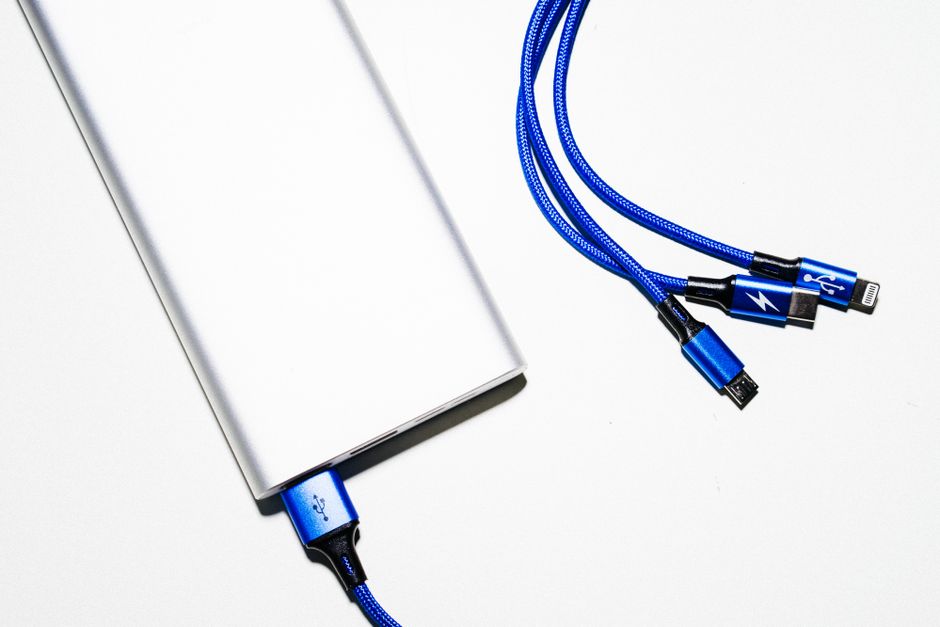
You grab a USB-C cable from your drawer, plug in your laptop, and watch the battery barely move after twenty minutes. Or you try to copy a folder of videos to an external drive and the transfer bar crawls like it’s stuck in molasses. The cable looks fine. It’s the same connector shape as every other USB-C cable you own. So what went wrong?
The answer comes down to USB-C cable specs, and most people never check them. USB-C is a connector shape, not a performance guarantee. Two cables can look completely identical and still differ wildly in power delivery wattage, data transfer speed, and build quality. That mismatch is exactly what breaks workflows: a video editor waiting an hour for a transfer that should take five minutes, or a laptop that trickle-charges overnight instead of hitting full power in a couple hours.
Most of us never think about this because we just use whatever cable came in the box or grab a random one from a tangled drawer. This guide breaks down exactly which specs matter, how to spot them, and how to build a small collection of cables that actually match what your devices need.
Why Your USB-C Cable Might Be the Bottleneck
USB-C standardized the connector, not the performance inside it. That’s the trap. Manufacturers can put vastly different wiring, chips, and shielding inside a cable that looks identical from the outside.
This matters because the cable is often the weakest link in your setup. You can have a powerful charger and a phone that supports fast charging, but if the cable between them only handles 5 watts, you’re stuck with slow charging regardless of what your other hardware can do. The same goes for data: a blazing-fast SSD connected with a bargain-bin cable will transfer at a fraction of its potential speed.
If you’ve ever plugged in a device expecting quick results and gotten sluggish performance instead, there’s a good chance the cable, not the device, is the problem.
The One Spec That Matters Most: USB Power Delivery Wattage
If you only check one spec before buying a cable, make it USB Power Delivery (PD) wattage. This number determines the maximum amount of power a cable can safely carry from charger to device.
Common PD ratings include 5W, 18W, 60W, 100W, and 140W. A cable rated for only 5W or 18W will never fast-charge a laptop or tablet that supports 100W charging, even if the charger itself is capable of it. The cable becomes the bottleneck, capping your charging speed no matter how good the rest of your setup is.
The real-world difference is dramatic. A properly rated 100W cable can take a laptop from empty to full in a couple of hours. A mismatched low-wattage cable can stretch that same charge out over most of a day or fail to keep up with the device’s power draw.
To check a cable’s PD rating, look at the packaging first. Reputable brands print the wattage directly on the box or on a tag near the connector. Some premium cables even print the rating on the cable jacket itself, often near the plug.
USB Speed Standards: Knowing 3.1 Gen 2 From USB 2.0
Charging speed is only half the story. The other half is data transfer speed, and this is where USB-C cable specs get more confusing because of naming.
Data speeds range from USB 2.0 at 480 Mbps all the way up to USB 3.2 Gen 2×2 at 20 Gbps. In between, you’ll see labels like USB 3.1 Gen 1 (5 Gbps), USB 3.1 Gen 2 (10 Gbps), and USB 3.2 Gen 2×2 (20 Gbps). Thunderbolt 3 and Thunderbolt 4 cables push even further, up to 40 Gbps.
Here’s the catch: your setup is only as fast as its slowest component. If you connect a high-speed SSD to a fast laptop port using a USB 2.0 cable, you’ll get USB 2.0 speeds, period. The cable becomes the ceiling.
In practical terms, transferring a 10GB file over a fast USB 3.2 Gen 2 connection might take about five minutes. The same file over a USB 2.0 cable could take closer to an hour. That’s not a small inconvenience; that’s a broken workflow.
Physical Cable Quality: Length, Gauge, and Build Matter
Specs on paper are one thing, but physical build quality affects real-world performance too.
Longer cables, especially those over 10 feet, naturally have more electrical resistance. This can reduce both charging speed and data transfer reliability, even if the cable is technically rated for high performance. If you need length, look for cables specifically rated to maintain speed and power over distance.
Cable gauge, meaning the thickness of the internal wiring, also affects how much power a cable can safely deliver. Thicker gauge wiring generally supports higher wattage charging. Braided or reinforced cables tend to last longer and resist fraying, but braiding by itself does not make a cable faster.
Cheap, poorly made cables can overheat under heavy loads, disconnect randomly, or throttle themselves to avoid damage, which shows up as random slowdowns. Don’t assume a rugged-looking cable automatically means better performance specs.
How to Read the Label and Identify Fast vs. Slow Cables
Once you know what to look for, spotting a capable cable gets much easier. Check for these markings on packaging or the cable itself:
- USB 3.1 or USB 3.2 labeling, which indicates data speed tier
- Power Delivery wattage, such as 60W or 100W
- USB-IF certification badge, showing the cable passed official compliance testing from the USB Implementers Forum
- Thunderbolt 3/4 logo, for the highest combined speed and power tier
Be skeptical of vague marketing terms like ‘high-speed’ or ‘fast charging’ with no actual numbers attached. Those phrases mean nothing without a specific wattage or data rate behind them. Some premium cables now include a QR code on the packaging that links to full technical specifications, which is worth scanning before you buy if you’re unsure.
Common Cable Types You Need to Know
Not all USB-C cables serve the same purpose, and knowing the differences helps you avoid buying the wrong one.
USB-C to USB-C cables are the most versatile option today, supporting both fast charging and fast data transfer when built to higher specs. This is what you want for most modern laptops, phones, and tablets.
USB-A to USB-C cables are common for connecting newer devices to older computers or accessories. They’re fine for charging older devices, but they’re capped by USB-A’s older speed standards and generally lower power limits.
Thunderbolt 3 and Thunderbolt 4 cables are the premium tier, supporting up to 40 Gbps data speeds and up to 240W of power in newer specifications. These are ideal for connecting external displays, docks, or high-speed storage.
Third-party cables aren’t automatically worse than brand-name ones. A certified third-party cable that carries proper USB-IF certification can match name-brand performance for less money. The certification badge matters more than the logo on the packaging.
Testing Your Current Cables (What You Can Check Right Now)
You don’t need special equipment to get a rough sense of how your current cables perform.
Time how long it takes your phone to charge from 0 to 50 percent. Most modern phones should manage this in about 30 minutes with a proper fast-charging cable and adapter. Use a file transfer app or your operating system’s built-in transfer window to watch the actual speed reported during a large file copy. Test the same device with two or three different cables and compare results directly.
A significant gap points to a weak cable, not a weak device. If your phone or laptop is charging noticeably slower than it used to or slower than a friend’s identical device, your cable is a likely suspect before you start troubleshooting the device itself.
When to Replace Your USB-C Cables
Cables wear out, and recognizing the signs saves you from chasing phantom device problems.
Replace a cable if charging time has roughly doubled or tripled compared to when it was new. Frayed jackets, bent connectors, or a plug that feels loose in the port are physical signs of internal wire damage that can quietly degrade both power and data performance. Upgrading your devices matters too.
A new laptop that supports 100W charging needs a cable rated for that wattage, even if your old 60W cable still physically fits and appears to work. As a rule of thumb, it’s smarter to keep one quality cable dedicated to each specific use case rather than relying on a single cable to handle everything from charging to external drives to monitors.
Building Your Cable Arsenal: Recommendations by Use Case
A small, purpose-built collection of cables beats one all-purpose cable that half-does everything.
- Fast charging at home: a 100W USB Power Delivery, USB-C to USB-C cable, kept short for minimal resistance
- Data transfers: USB 3.2 Gen 2 or higher, prioritizing speed rating over power rating
- Travel or portable use: a durable, braided 60W PD cable in the 3 to 6 foot range for a balance of portability and charging speed
- Monitor and dock connections: a Thunderbolt 3 or 4 cable when you need video output and data transfer running simultaneously
Building this kind of small arsenal takes a little upfront thought, but it eliminates the guesswork of grabbing a random cable and hoping it performs the way you need.
USB-C cable specs aren’t just fine print. They’re the difference between a workflow that runs smoothly and one that quietly frustrates you every single day. Once you know what to check, choosing the right cable takes seconds, and you’ll never have to wonder why your ‘fast charger’ isn’t actually fast again.
Frequently Asked Questions
What’s the difference between USB 3.0 and USB 3.1 cables?
USB 3.0, often rebranded as USB 3.1 Gen 1, tops out around 5 Gbps of data transfer speed. USB 3.1 Gen 2 doubles that to about 10 Gbps, making it noticeably faster for large file transfers.
Can a slow USB-C cable damage my device?
A properly made cable, even a slow one, generally won’t damage your device, though it may charge slowly or transfer data at reduced speeds. Cheap, poorly manufactured cables are the bigger risk, since they can overheat or deliver unstable power that stresses your device’s charging circuitry.
How do I know if my cable supports fast charging?
Check the packaging or cable label for a Power Delivery wattage rating, such as 60W or 100W. If there’s no wattage listed anywhere, treat the cable as a basic charging cable rather than a fast-charging one.
Is a more expensive USB-C cable always faster?
Not necessarily. Price often reflects brand name, cable length, or build materials like braiding rather than actual speed or power rating. Always check for USB-IF certification and explicit wattage or speed markings instead of assuming a higher price means better performance.
Why does my device charge slower with certain cables?
Different cables carry different Power Delivery wattage ratings, and a low-wattage cable caps your charging speed regardless of how powerful your charger or device is. Swapping in a cable rated for your device’s full charging wattage usually solves the problem immediately.
Do I need a different cable for my new laptop?
If your new laptop supports higher wattage charging than your old device did, your existing cable may not be rated to deliver that full power. Check your laptop’s charging specs and match them to a cable with an equal or higher Power Delivery rating.