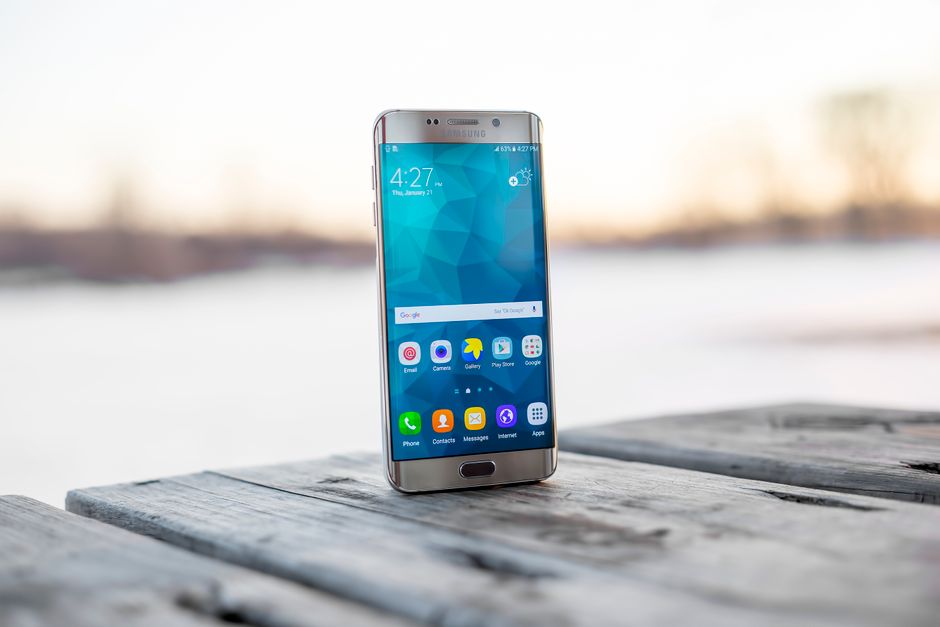
A tiny colored dot that won’t disappear from your screen is one of the most annoying things a Galaxy owner can encounter. If you’re dealing with dead pixels Galaxy phone screens sometimes develop, the good news is that not every spot means a costly repair. Some pixel problems are temporary glitches you can fix in minutes, while others signal permanent hardware damage that needs professional attention.
This guide walks you through exactly how to tell the difference, which DIY tricks actually work, and when it makes more sense to hand your phone to a repair technician instead of wasting time on home remedies.
What Are Dead and Stuck Pixels?
A dead pixel is a tiny point on your screen that shows no color at all. It usually appears as a black dot because the pixel isn’t receiving any power or signal, so it can’t display light. Dead pixels are almost always caused by physical damage to the display’s transistor layer, which means they’re typically permanent.
A stuck pixel, on the other hand, is stuck displaying a single color, often red, green, or blue, regardless of what’s on screen. Unlike dead pixels, stuck pixels still receive power. The subpixel is just locked in one position. This distinction matters because stuck pixels respond to certain fixes, while dead pixels usually don’t.
Why These Issues Show Up on Galaxy Phones
Samsung’s AMOLED and OLED panels are made of millions of individual subpixels, each controlled separately. A manufacturing defect, a hard drop, pressure from a tight pocket, or even prolonged exposure to extreme heat can cause a subpixel to malfunction. Over time, tiny impurities can also get trapped between layers of the display, creating a stuck pixel that looks like permanent damage but sometimes isn’t.
The key takeaway: not every screen imperfection is a lost cause. Diagnosing the type of pixel issue you’re dealing with is the first step toward the right fix.
How to Diagnose Pixel Issues on Your Galaxy Phone
Before trying anything, figure out exactly what you’re dealing with. A few minutes of testing can save you from unnecessary repair costs.
This diagnostic process usually takes less than ten minutes and tells you which of the following sections actually applies to your phone.
DIY Solutions to Fix Stuck Pixels
If your diagnosis points to a stuck pixel rather than a dead one, you have a few legitimate options worth trying before booking a repair.
The Pressure Technique
Power off your phone, then gently massage the area around the stuck pixel with a soft microfiber cloth. Use light, circular pressure, never press directly on the pixel with anything hard. This can sometimes redistribute trapped subpixel fluid and restore normal function. Turn the phone back on and check the result. Repeat only a couple of times; excessive pressure can create new problems, including additional dead pixels.
Pixel-Fixing Apps
Several apps cycle your screen rapidly through a sequence of bright colors at high frequency. The rapid flashing is designed to “shake loose” a stuck subpixel by forcing it to switch states repeatedly. Run one of these apps for 10 to 20 minutes at a time. These tools are generally safe for short sessions, though there’s no guarantee of success since results depend on the root cause of the stuck pixel.
Manual Screen Cycling
You can achieve a similar effect without an app by rapidly switching between a solid black and solid white image, or flipping through a slideshow of bright colors. This won’t work for every stuck pixel, but it’s free, safe, and worth trying for five minutes before you download anything.
Know the Limits
None of these methods fix a true dead pixel. If the pixel shows zero color response no matter what you try, you’re looking at a hardware issue that DIY tricks can’t resolve. Don’t spend hours repeating these steps if you see no improvement after a few attempts.
Software Troubleshooting Steps for Galaxy Phones
Sometimes what looks like a pixel problem is actually a software glitch. These steps take just a few minutes and rule out non-hardware causes.
- Clear the cache. Go to Settings, then Apps, then select the affected app (or system UI) and clear its cache. A corrupted cache can cause rendering glitches that mimic stuck pixels.
- Update your software. Check Settings > Software update to make sure you’re running the latest available Galaxy OS version. Samsung regularly patches display driver bugs that can cause flickering or discoloration.
- Adjust display settings. Try switching your screen resolution or refresh rate under Settings > Display. Sometimes a specific refresh rate setting interacts poorly with certain apps and causes visual artifacts that aren’t true pixel damage.
- Boot into Safe Mode. If the artifact disappears in Safe Mode, a third-party app is likely the culprit, not your display hardware.
If the issue persists after all of these steps and shows up consistently regardless of app or setting, you’re most likely dealing with a genuine hardware defect.
When to Seek Professional Repair
Some signs mean it’s time to stop troubleshooting and start looking at repair options.
Signs of Permanent Hardware Damage
- The spot appears in every app, in Safe Mode, and in screenshots
- Multiple pixels are affected or the number of dead spots is increasing
- The area shows visible cracking, discoloration, or pressure marks on the glass
- The issue appeared right after a drop, spill, or exposure to extreme heat
Samsung Official Repair vs. Third-Party Shops
Samsung’s official repair channels use genuine parts and typically preserve any remaining warranty coverage. They tend to cost more but offer more reliable results and often faster turnaround for common models. Third-party repair shops can be cheaper and sometimes quicker for older or out-of-warranty devices, but part quality varies, so ask specifically about OLED or AMOLED panel sourcing before committing.
Expected Costs in 2026
Screen replacement costs vary widely depending on your specific Galaxy model, whether it’s a standard flat display or a foldable, and where you get it repaired. Foldable Galaxy screens generally cost significantly more to replace than standard flagship or mid-range models due to their more complex internal panel structure. Getting a quote from Samsung’s official support channel and comparing it against a reputable local shop is the best way to know your real cost before committing.
Warranty and Insurance
If your phone is still within its manufacturer warranty period, dead pixel defects that appear without any physical damage are often covered, especially if multiple units of the same model report similar issues. Samsung Care+ or third-party phone insurance plans may also cover screen replacement for a deductible. Check your coverage terms before paying out of pocket.
Prevention Tips to Avoid Future Pixel Problems
Protecting your display from the start is far cheaper than any repair.
- Manage brightness and temperature. Avoid leaving your phone at maximum brightness for extended periods in direct sunlight or hot cars. Heat stress accelerates panel degradation.
- Use a quality screen protector and case. A tempered glass protector absorbs minor impacts that could otherwise damage subpixels underneath.
- Avoid moisture exposure. Even water-resistant Galaxy models aren’t fully immune to internal display damage from prolonged moisture exposure.
- Keep software updated. Regular updates often include display driver improvements that reduce the chance of software-related visual glitches.
- Handle with care during charging. Avoid placing pressure on the screen while it’s plugged in and actively charging, since heat buildup is highest during that time.
Small daily habits go a long way toward keeping your Galaxy display pixel-free for years.
Frequently Asked Questions
Below are quick answers to the most common questions Galaxy owners ask about dead and stuck pixels.
Frequently Asked Questions
Can dead pixels on a Galaxy phone be permanently fixed at home?
True dead pixels are usually caused by permanent hardware damage and can’t be fixed through DIY methods. Stuck pixels, however, sometimes respond to pressure techniques or pixel-fixing apps since the subpixel is still receiving power.
How much does it cost to replace a Galaxy phone screen with dead pixels?
Costs vary based on your specific model and repair provider, with foldable Galaxy screens generally costing more than standard flagship or mid-range displays. Getting quotes from both Samsung’s official repair service and a trusted local shop is the best way to compare pricing.
Will my Galaxy phone warranty cover dead pixel damage?
If the defect appeared without physical damage and your phone is still within its warranty period, it’s often covered under manufacturer warranty or Samsung Care+. Check your specific coverage terms, since accidental damage typically isn’t included in standard warranty.
Are stuck pixels different from dead pixels and do they need different fixes?
Yes, stuck pixels display a constant color because they still receive power, while dead pixels show no color because they’ve lost power entirely. Stuck pixels can sometimes be fixed with pressure techniques or screen cycling apps, but dead pixels almost always require hardware repair.
Can software updates fix dead or stuck pixels on Galaxy devices?
Software updates can resolve display glitches caused by driver bugs or app conflicts that only look like pixel damage. However, they can’t repair actual hardware defects in the display panel itself.