
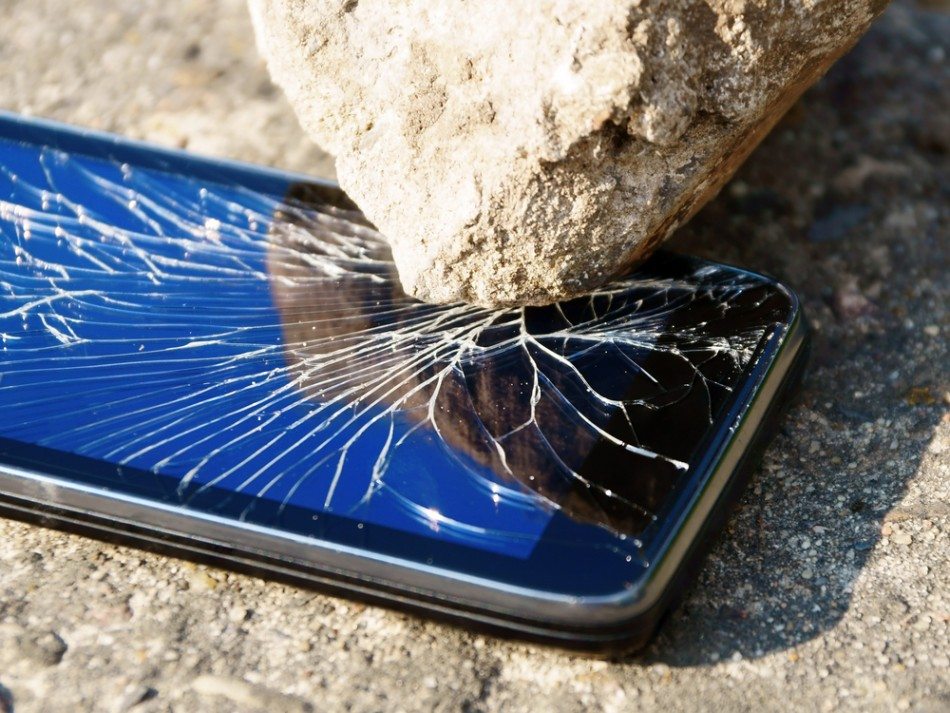
It’s been some time since the release of the Samsung Galaxy S5; many people are using it; although it’s waterproof, it does not make it unbreakable; accidents never occurred before, And if something wrong is supposed to happen with your phone, you can’t stop it, Screen of the smartphone is very vulnerable to drops and once it’s broken the first thing that needs to be sorted out is how you are going to retrieve your data before you can claim the insurance of buy a new Smartphone.
Before moving on to the trick that will help you recover data from the S5 Broken Screen, ensure you have tried easy methods like USB debugging mode or KIES. Still, if you have a screen pattern lock or security code and your phone booted after it fell and broke up, you might be unable to access the data using a USB cable unless you unlock the Screen first.
If you want to unlock your S5 broken screen to access your data, I am glad I can help you. The most straightforward way to recover data from a broken Galaxy S5 screen is to unlock your phone using Samsung Account Services. First, you need to check if you have a registered Samsung account. If you do, then you can quickly recover data, including contacts, etc., after unlocking your Screen.
Tip: You should always make a backup of your phone on your MAC or PC; it will help you to get your data back if you have lost your phone or it’s broken.
How To Recover Data From Galaxy S5 Broken Screen
Moving on to the method to recover data from Galaxy S5 Broken Screen, you can remotely unlock your S5 Broken Screen using your Samsung Account by following the steps below.
Note: If you want this service to work, you must have a Samsung Account on your S5. It is the same service as Apple’s Find My iPhone. If you don’t have a Samsung account, try this guide.
- First, log in using your Samsung account credentials on Samsung’s Find My Mobile service.
 Once logged in, you will see all the actions you can remotely perform on your S5 Broken Screen.
- You will see an option: “Remotely unlock my phone or Unlock screen remotely.”
- Unlock your phone using it.
- Now, connect your Galaxy S5 to your MAC or PC. You will see a new drive in your PC’s My Computer, where all your phone data will be visible.
- Recover the data and all the content using standard copy-paste.

That is it. I hope this method works out for you; if you have any issues regarding anything in this guide, let me know in the comments. Feedback would cheer me up if it works for you and you get back your data.
Follow us on Facebook and X for the latest news on gadgets and technology.











Massive help…sorted it! Thank You!
tells me my device isn’t connected to a network, but i can hear it getting notifications.
great!@ sorted out security of my new phone. My old phone with the screen busted and missing however…..never registered it with Samsung find my phone…..damnit.!
cannot locate and recover contacts which is mostly crucial. Any help? Thanks in advance.
My home screen on the “Find My Mobile” web site does not have an item that allows me to remotely unlock my screen. But it does give me the option to lock it. Which is kind of what I’m trying to get around. Any ideas?
Then it might be Already unlocked. Use Smart Switch to access your data. Install Smart switch on your computer. and connect your phone to your computer and try accessing contents of your data. If smart switch is not available for your phone try KIES.
thanks a lot. You have been very helpful
Very interesting details you have remarked, thank you
for posting.
thx
Awsome. Worked exactly as you mentioned. Thank you so much for the help my friend.
Vinay
Awesome help…Bless Ya
Very big help. Worked for me!!!!
Thaks a lot. You have been very helpful
Hi – it gives me a message to enable USB transfer. Anything that i could do to enable USB Transfer?
Good old rag head doesnt know
really help not even ee or samsung cpould help